Help › Trips, duty and rest
Coming up: your next trips, layovers and alerts
Read your next report, each duty day, the layover with its hotel, pickup, weather and country advice, and set up commuting, gate and delay alerts and a schedule link for your family.
Once your roster is in the logbook, LogAloft lays out the next two weeks: when you report, what you fly, where you sleep, and what could change your day. This guide goes through that screen piece by piece, says where each number comes from and what it leaves out, and shows how to set up commuting options, gate and delay alerts and a schedule link for your family. It's written for line crew; passengers see most of the same pieces.
If nothing shows yet, bring in your roster first: Import takes a calendar link, an .ics file, a roster PDF or a booking email (see Bring in your flights).
Where to find it
LogAloft has two places for what's ahead.
- Today is the one-screen summary. The top line shows the clock where you are now (your layover city, or your home or base, with the zone's short name), then what you're doing: "Report Wed 17:05", "Layover in Madrid", "Flying BOS → MAD" or "Commute Wed 11:10". Buttons under it lead to the next step, such as Rest plan and The day in Trips.
- Trips is the detail. On a computer you see a month calendar on the left and, on the right, two tabs: The trip (the whole pairing on a 24-hour timeline) and The day (the card for the day you picked). On a phone, Month is a third tab. The duty and layover cards under The day are what this guide calls Coming up: your planned days, in local time.
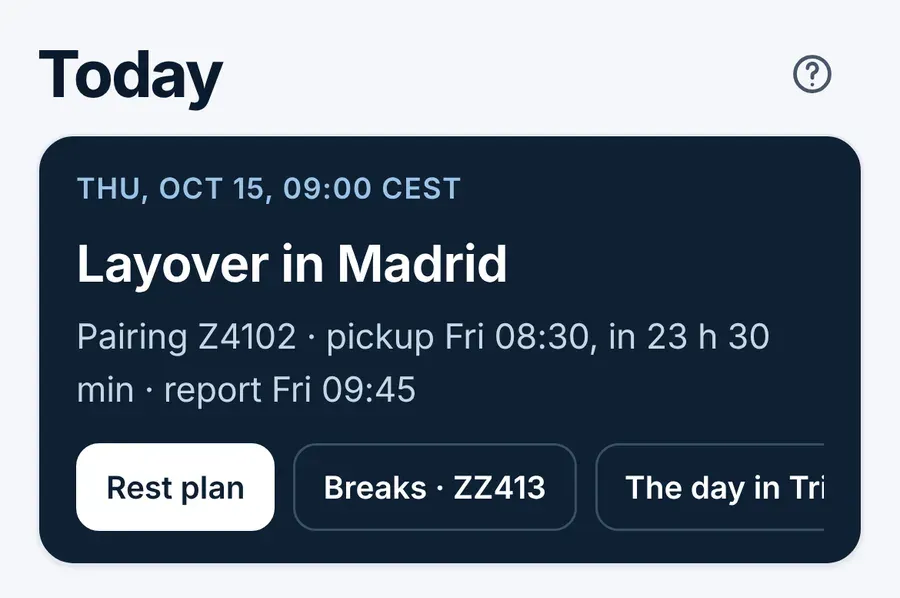
Every time on these screens is local at the airport it belongs to. When a day spans two time zones, the timeline names the airport for each time. For how times are stored, see Troubleshooting.
The calendar
The month calendar colors each day by what it is: Flying, Layover, Deadhead, Commute or passenger, Reserve, Training and Ground duty. Reserve, training and ground duty come from roster files that include them. A small airplane marks a night on board. A dot shows the day's dose (bigger means more), and the line under the month name totals block hours, duty days and dose.
Each day also carries the weather: the forecast up to about 10 days ahead, what it was on past days, and a "~" typical value further out. Tap a day to open its card.
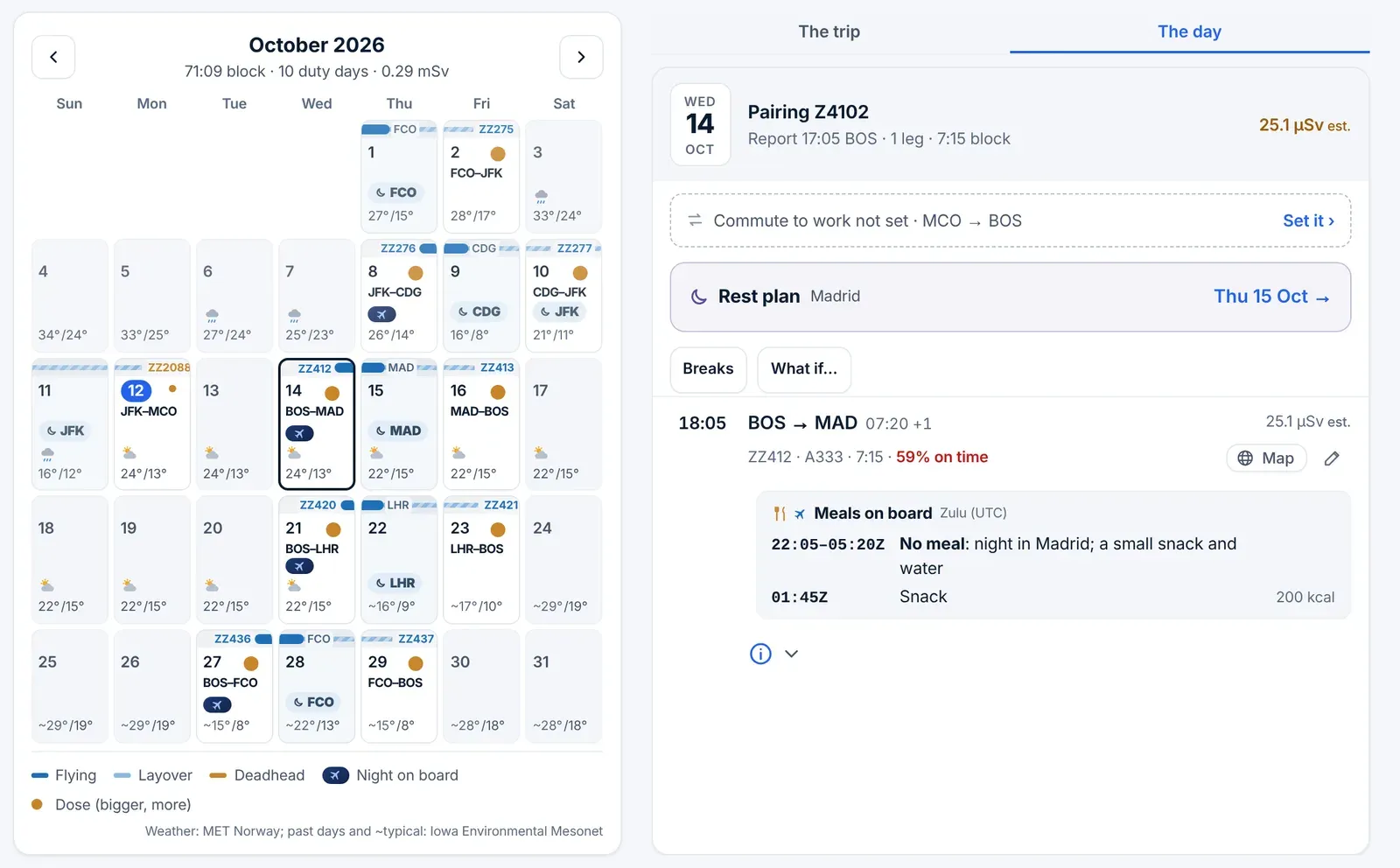
A duty day, piece by piece
Each duty day is a card. LogAloft groups legs into one duty day by the report time your roster gives; without one, legs on the same local day go together.
The header
The date on the left, then what kind of day it is: "Today" or "Tomorrow", the pairing number, and words like Deadhead or Commute to work when the whole day is that. The second line reads, for example, "Report 17:05 BOS · 1 leg · 7:15 block". The report time appears only when your roster gives one. For the duty limits and the layover length, LogAloft assumes a report 1 hour before the first departure when the roster has none, and ends the duty at the last block-in.
On the right is the day's dose in µSv. Gray means an estimate; it becomes the flown figure after the flight lands and its track comes in.
Two warning chips can appear under the header:
| Chip | What it checks |
|---|---|
| No 30 h rest in the 7 days before (red) or 30 h rest in 7 days: … tight (amber) | 14 CFR 117.25(b): 30 consecutive hours free from all duty in the 168 hours before a flight duty period. Red below 30 hours, amber below 32. Commuting doesn't count as duty. |
| under 10 h rest | 14 CFR 117.25(e): 10 consecutive hours of rest before a flight duty period. LogAloft measures as the Duty & rest tab does: from release (the last block-in plus your release minutes, 15 unless you change them in Settings) to the next report, and flags it only when the next day has an operating leg. |
These chips are a cross-check of what's in your logbook, not a legality call. A missing report time, a late block-in that hasn't synced, or your contract's stricter rules can all change the answer. Your company's procedures and your scheduling department come first.
The legs
Each leg shows the departure time, the route with the arrival time ("+1" for the next local day), the flight number, the type, the block time and the dose. Connections under 45 minutes are highlighted.
For legs in the next three days the card adds live details, some directly under the leg and the rest behind the round i:
- Gate. For a signed-in account, the departure gate once it's posted, which is usually about a day before departure. Until then the card says "Gate: posted about a day before departure."
- Will it leave on time? An outlook such as "Likely on time · 9% chance of 15+ min late", from US DOT on-time data, today's FAA status and the forecast at both ends. Tap it for the 1-hour and 3-hour chances and the reasons. With Pro Pro it adds the inbound aircraft: which flight brings your airplane in, where it is, and how long before your departure it's due.
- Departure weather. The forecast at the departure airport for the departure time, up to about 10 days ahead.
- Alerts, airport maps and, for US airports within 12 hours, the airport's current status.
Map on the right opens the flight on the globe (Live map in the air); the pencil edits it.
The delay outlook is a statistical estimate. The airline's own information, and your crew scheduling, always come first.
The day's buttons
Under the header, depending on the day:
- The Rest plan row (for example "Rest plan · Madrid · Thu 15 Oct →") opens the layover's rest plan (sleep, naps, meals and light). It appears for a layover before another working day, and for trips across 3 or more time zones.
- Breaks, a button beside What if…, appears for an operating leg of 5 hours or more, to split the rest in flight.
- What if… recomputes the duty's limits with a delay or an added leg, for a working day in the next week. On the day itself, if live estimated times push you close to a limit, a "With the delay" line says how much room is left.
Days off have no card: they're the empty days on the calendar. A leg's live details (gate, outlook) stay up until 30 minutes after it lands. To look further ahead, move the calendar to the next month and pick a day.
The layover
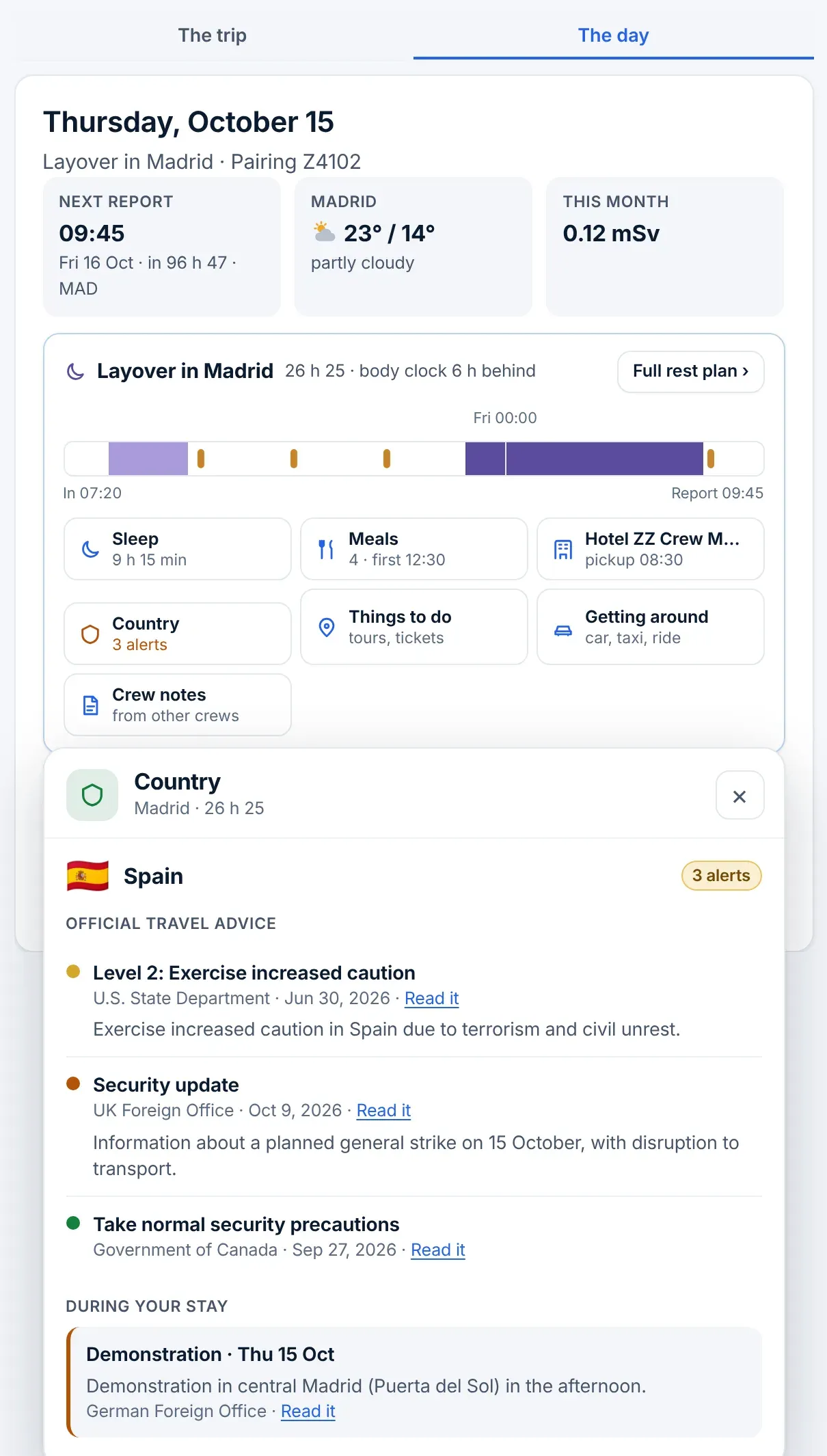
A night away from base or home gets its own card, "Layover in Madrid", with its length, how far your body clock is from local time ("26 h 25 · body clock 6 h behind"), an under 10 h rest chip when it applies, and a Full rest plan › button. Under the header, a strip runs from your arrival ("In 07:20") to the next report, with the planned sleep, nap and meals on it. Above the card, on the layover day, tiles give the next report, the city's weather and your dose this month. A night at base or home inside the same pairing counts as a layover too.
Under the strip are the chips. Each shows a short summary (the hours of sleep, the number of meals and the first one, the hotel and pickup) and opens its own window over the card:
| Chip | What's inside |
|---|---|
| Sleep, Meals | The rest plan's sleep and meal times for this stay. |
| Hotel | The hotel's name and phone, the pickup time, the drive, the address and a map link. Add the hotel or Change the hotel or pickup. Crew notes on this hotel: anonymous notes from crews who stayed there (signed-in crew). |
| Country | Government travel advice and what's on during your stay (next section). |
| Things to do | Tours and tickets, and the concerts, games and shows on while you're there (from Ticketmaster, with a link to its page), for layovers of 20 hours or more. |
| Getting around | The ride apps that work in that country (links to open them), a taxi to book ahead from the airport, car rental and bikes (partner links). |
Hotel and pickup
LogAloft takes the hotel from the arriving leg when your roster lists it. Otherwise it uses the hotel you saved for that city, or the one from your last layover there. Once the hotel is known and you're signed in, it works out the drive in predicted traffic both ways (Mapbox) and shows "37 min to the hotel".
For the pickup, a time from your schedule always wins. If you typed it yourself it says "(yours)". If there's none, LogAloft estimates one: "pickup about 07:50 (45 min drive in traffic + 30 min airport entrance to gate)". The second number is a buffer for getting from the curb to the gate. You can change the pickup, and the hotel, from Change the hotel or pickup. A pickup must fall between landing and the report, or LogAloft refuses it.
If your company gives you a fixed pickup, type it in once: it's kept for that layover and later roster imports don't overwrite it.
The Country window and what "No serious alerts" means
The Country chip turns green with "no serious alerts", or amber or red with "1 alert", "2 alerts" and so on. Open it for the detail: the country's flag and name, then Official travel advice, During your stay, an eSIM link where there is one, and the list of sources checked.
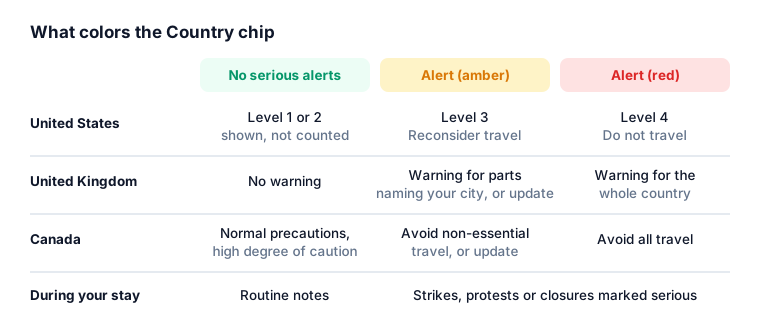
LogAloft reads three governments' advice, refreshed every 6 hours:
| Source | Levels it publishes | Counts as an alert |
|---|---|---|
| U.S. State Department | 1 Exercise normal precautions · 2 Exercise increased caution · 3 Reconsider travel · 4 Do not travel | Level 3 (amber) and Level 4 (red) |
| UK Foreign, Commonwealth & Development Office | Advice against all travel, or all but essential travel, for the whole country or parts of it; plus security updates | Whole country (red); parts of the country only when the warning names your layover city (amber); a security update about protests, strikes, unrest, attacks or curfews in the last 3 days (amber) |
| Government of Canada | Take normal security precautions · Exercise a high degree of caution · Avoid non-essential travel · Avoid all travel | Avoid non-essential travel (amber), Avoid all travel (red), or a security update in the last 7 days (amber) |
During your stay lists what falls inside your layover dates: strikes (from Germany's Foreign Office and Italy's strike calendar), public holidays and big parades, protests, rallies, strikes, unrest, attacks, curfews and states of emergency reported in the news, including the local press in its own language (GDELT, checked by AI and translated into your language), natural disasters nearby (earthquakes, cyclones, floods, eruptions and wildfires, from GDACS, the UN and European Commission's alert system) disease outbreaks in the country (the World Health Organization's Disease Outbreak News), and big games and concerts at stadiums and arenas that fill hotels and roads (Ticketmaster). Routine notes show as information; only the ones marked more serious count toward the chip.
So "No serious alerts" means: nothing at US Level 3 or 4, no UK or Canadian warning or recent security update that applies, and nothing serious in the news or strike lists for your dates. It does not mean the country is risk-free. Level 2 advice, common across Europe, still shows in the window with its date and a Read it link; it just doesn't color the chip.
For a US layover the window says that the State Department doesn't rate the United States itself. If the advice can't be loaded, it says so rather than showing a green chip.
LogAloft summarizes public government advice; it doesn't assess security itself. Your airline's security department and its crew briefings come first, and the official pages behind each Read it link are the authority.
Commuting to base Pro
If you live away from your base, LogAloft looks for flights from your home airport to your base before each trip and back after it.
Set it up
- Open Settings and, under Airports, fill in Crew base and Home airport (three- or four-letter codes).
- Tick I commute between them: show flights to base before each trip and home after.
- In Your account → Pilot profile → Edit profile, set Arrive before report: 1 hour, 1½ hours, 2 hours (the default), 3 hours or the day before. Set Airline or company too if you want your airline's flights marked.
- In Trips, a slim line now appears on each trip that starts at base: "Commute to work not set · MCO → BOS". Tap Set it.
How the options are found
LogAloft asks a flight-schedule service for departures from your home airport in the 24 hours before your arrive-by time and keeps only nonstops to your base that land by then and aren't canceled. Connections aren't searched.
From those it picks:
- ★ Latest with a backup: the latest flight that still has another one after it that works.
- Its backup: that later flight.
- Earlier and Later flights, and Last one, no backup.
Flights the evening before are marked Day before. Each option shows local times, the aircraft and terminal when known, and the time it leaves before report. A colored dot rates it (no problems expected, something to watch, likely problems) with the reasons:
- less than 20 minutes to spare before your arrive-by time;
- already running 15 minutes or more late;
- thunderstorms, LIFR or IFR, snow or freezing precipitation (deicing) or gusts of 35 kt or more in the TAF at either end;
- FAA ground stops, ground delay programs, closures or delays at either airport, checked when the first flight is within 8 hours.
With your airline set, Flights that count follows your commuter policy: Any airline, Backup on ZZ or Only ZZ.
The way home works the same in reverse: flights leaving at least 1 hour after release, with First that works and Its backup.
Airlines don't publish open seats, so LogAloft can't show loads; check your airline's non-rev or jumpseat system. Schedules and times come from third parties and can be wrong or late. Your company's commuting policy decides what counts as a legal commute, not LogAloft.
Tap Follow this flight on the one you plan to take. It goes on your schedule as a commute: a passenger leg that counts toward your dose but never toward your flight time, with gate and delay alerts if you have them on. After it leaves, the card asks "Did you take ZZ 1184?" so the one you actually flew stays and the others go.
Gate and delay alerts Pro
Turn them on
- On iPhone or iPad, install LogAloft first (Safari → Share → Add to Home Screen) and open it from the icon. iOS only delivers web notifications to installed web apps, from iOS 16.4.
- Open Settings → Alerts and emails and tick Alerts for every flight on my schedule. Or tap Turn on alerts on the "Know about gate changes and delays" card in Trips.
- Allow notifications when the browser asks. A test notification arrives within seconds.
- Tick Also by email if you want them in your inbox too.
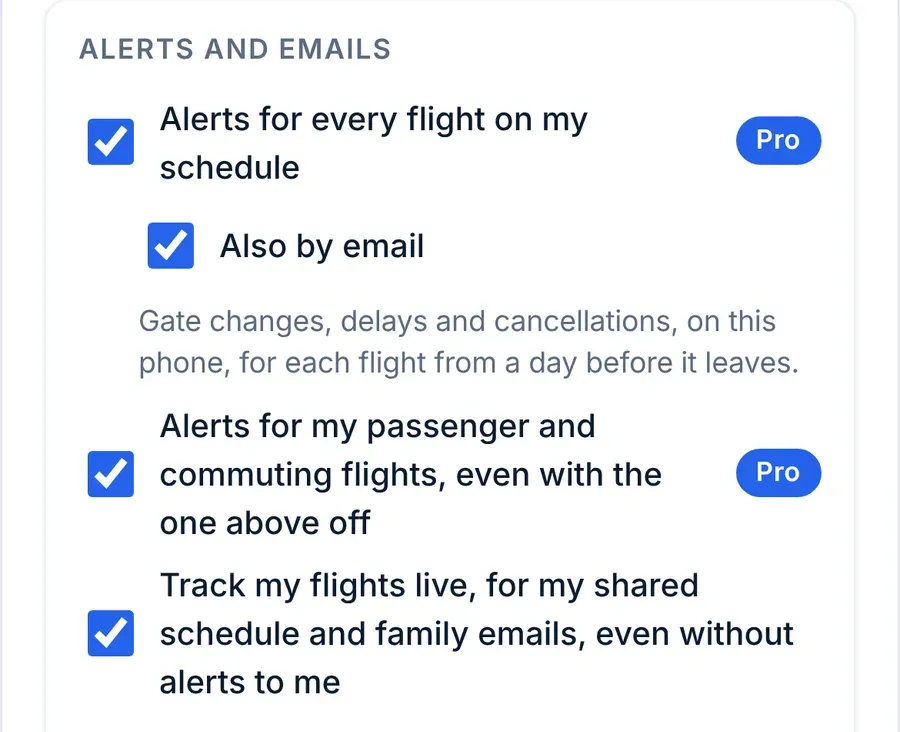
The other two options:
- Alerts for my passenger and commuting flights, even with the one above off: deadheads, passenger legs and followed commutes alert you even if you don't want alerts for working legs.
- Track my flights live, for my shared schedule and family emails, even without alerts to me: every flight is followed quietly, so your family link can show live status.
To turn alerts off, untick the first option. The message says "Off. Alerts already set stay until those flights land." To silence a device completely, turn LogAloft's notifications off in the phone's settings. For one flight only, use Alert me about gate changes and delays under that leg in Trips.
What triggers an alert
LogAloft follows each flight with a flight number from yesterday through the next 3 days. The flight-status feed connects about 24 hours before departure and stops when the flight lands.
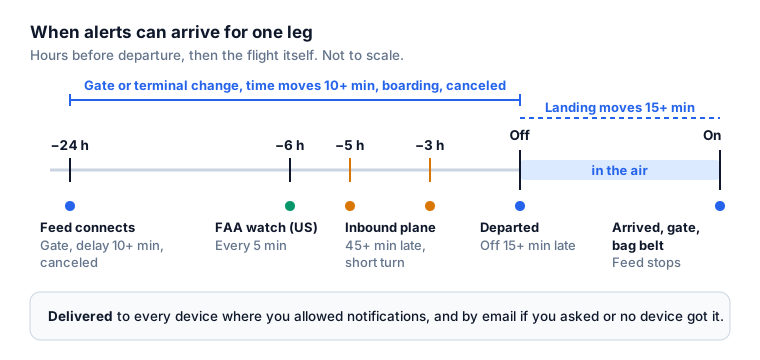
| When | What you're told |
|---|---|
| When the feed connects (about 24 h before) | What's already known: the gate, a delay of 10 minutes or more, or a cancellation |
| Before departure | A new or changed gate, a terminal change, a departure time that moves 10 minutes or more, "Boarding", "Gate closed", "May be canceled", "Canceled", "Diverted" |
| About 5 h and 3 h before the first leg of a duty | The airplane coming in for your flight is 45 minutes or more late and the turn would be under an hour, or it's canceled or diverted ("Your report may change: check with crew scheduling") |
| From 6 h before, every 5 min, for flights to, from or over the US | Took off 15 minutes or more late, with the landing estimate; the landing estimate moving 15 minutes or more; canceled; diverted |
| In the air and after landing | "Departed", "Now arriving" when the arrival moves 15 minutes or more, the arrival gate, "Arrived" with the gate, and the baggage belt |
Each notification names the flight, its local times and why it came, and goes to every device where you allowed notifications. Email goes out when you ticked Also by email, or when no device could take the notification.
The terms of service set fair use for Pro at about 150 alerts a month. A flight number is needed: legs without one, and simulator sessions, aren't followed.
Share your schedule with family
Any signed-in account can make a private link to its schedule.
- Open Settings → Share my schedule.
- Tick Show flight numbers if you want them on the page and in the calendar. Leave it off to show only cities and times.
- Tap Create a link, then Copy or Send.
- To put your trips in someone's calendar app, use Calendar link. It opens as a calendar subscription (webcal) that refreshes on its own.
What they see
The page shows your next two weeks by day in each airport's local time (with the viewer's own time in gray), where you are now or "In the air", and when you're home. No crew names, remarks, doses or hotels; no simulator sessions. The calendar feed has one event per leg, block-out to block-in, titled like "BOS → MAD" (plus "· ZZ 412" with flight numbers on).
With live tracking on (Pro), the page also shows each flight's status, and anyone with the link can tap Get an email when they take off and land. They confirm by email first, and then hear when you take off, land (with the arrival gate and baggage belt when known), or when a flight is canceled or 90 minutes or more late. Up to 10 people per link, and each email has a link to stop them.
Turn it off or replace it
Turn off stops the link at once: the page then says "This link doesn't work any more", and calendar subscriptions using it stop updating. New link makes a fresh one and the old one stops working. Anyone with the link can see your trips, so send it only to people you trust, and make a new one if it spreads further than you meant.
Worked example: a ZZ trip to Madrid
You're a first officer at the fictional ZZ Airlines, based in Boston (BOS) and living in Orlando (MCO). Your profile says Arrive before report: 2 hours. Your roster has pairing Z4102:
| Day | Leg | Report | Out (local) | In (local) | Block |
|---|---|---|---|---|---|
| Wed 14 Oct | ZZ 412 BOS → MAD, N812ZZ, Capt. J. Rivera | 17:05 BOS | 18:05 EDT | 07:20 CEST +1 | 7:15 |
| Fri 16 Oct | ZZ 413 MAD → BOS | 10:05 MAD | 11:05 CEST | 13:30 EDT | 8:25 |
The commute. On Wednesday's card the line reads "Commute to work not set · MCO → BOS". You tap Set it: be at BOS by 15:05. Say three nonstops work: ZZ 1180 at 09:30, ZZ 1184 at 11:10 (lands 13:55) and ZZ 1186 at 12:40 (lands 15:00). ZZ 1184 is ★ Latest with a backup, and ZZ 1186 is Its backup, rated "something to watch" because it leaves only 5 minutes to spare. You follow ZZ 1184. It joins your schedule as a commute, and with passenger alerts on you'll hear if its gate changes.
The day before. About 24 hours before 18:05 the feed connects for ZZ 412; if gate B12 is already posted, you get "Departs from gate B12" at once. At about 13:05 and 15:05 EDT LogAloft checks the airplane coming in, and tells you if it's running 45 minutes or more late with a short turn.
The layover. Thursday morning, Today reads "Layover in Madrid", with "Pairing Z4102 · pickup Fri 08:30" and the time left under it. The layover is 26 h 45 min, block-in 07:20 to report 10:05 Friday. If the State Department rates Spain at Level 2, the Country window shows that row with its date, but the chip stays green with "no serious alerts", because only Levels 3 and 4 count. If a transport strike is called for Friday, it appears under During your stay and the chip turns amber.
At home. Your partner's share link reads "In the air" on Wednesday night, and on Friday they get an email, "Alex landed in Boston", with the gate. On the last card, "Commute home not set · BOS → MCO" offers your flights home.
Common questions
Why don't I see a report time?
LogAloft shows "Report" only when your roster gives it. Without one, the duty limits and rest chips assume a report 1 hour before the first departure. Import the roster's own file or calendar link, which usually carries report times.
Why didn't I get an alert for a flight next week?
The feed connects about 24 hours before departure, and LogAloft follows flights up to 3 days ahead. Nothing can arrive earlier than that.
Can my family see my hotel or crew?
No. The share page and calendar show cities, times and where you are now. Hotels, crew names, remarks and doses are never on them.
Commuting says "Commuting options come with LogAloft Pro". I'm on the trial.
The trial includes commuting. Sign out and back in, or open Your account so the app checks your plan again. If it still says so, write to support.
Sources
- 14 CFR 117.25, Rest period (paragraphs (b) and (e)): eCFR
- U.S. Department of State, Travel Advisories and what the levels mean: travel.state.gov
- UK Foreign, Commonwealth & Development Office, Foreign travel advice: gov.uk/foreign-travel-advice
- Government of Canada, Travel Advice and Advisories explained: travel.gc.ca
- FAA National Airspace System status: nasstatus.faa.gov
- NOAA Aviation Weather Center, TAFs: aviationweather.gov
- MET Norway weather API: api.met.no
- WebKit, Web Push for Web Apps on iOS and iPadOS (iOS 16.4): webkit.org
- LogAloft Terms of service (fair use of alerts and commuting) and Privacy policy