Help › Account and more
Troubleshooting
Find your symptom, see what usually causes it, and fix it: installing, sign-in emails, sync, imports, times and time zones, night time, duplicates, doses, alerts, updates, and what to send support.
Most problems in LogAloft come from a handful of causes: a sign-in on the wrong device or browser, a notification permission, a time typed in the wrong zone, or a file in a format the importer doesn't know yet. Each section below starts with a table (what you see, why, what to do), then explains the parts that need more than a line. If nothing here fits, the last section says how to reach support and what to include so it's fixed on the first reply.
Installing the app
LogAloft is a web app: it installs from your browser and opens full screen from its own icon. There's no App Store or Play Store version.
| Platform | How to install |
|---|---|
| iPhone and iPad | Open logaloft.com in Safari. Tap Share, then Add to Home Screen, then Add. Open LogAloft from the new icon. |
| Android | Open logaloft.com in Chrome. Tap ⋮, then Install app (or Add to Home screen). |
| Computer | Use any browser. In Chrome or Edge, the install icon in the address bar adds it as an app. |
In the logbook, More → Install the app opens your browser's own install prompt where there is one, and these instructions where there isn't.
| What you see | Why | What to do |
|---|---|---|
| No Add to Home Screen on iPhone | The Share sheet hides it further down, or you're in an in-app browser (opened from a link in Mail, Gmail or a messaging app) | Open logaloft.com in Safari itself and scroll the Share sheet down. |
| No Install app on Android | Not Chrome, or it's already installed | Use Chrome; check your app drawer for LogAloft. |
| The installed icon opens signed out | On iPhone and iPad the icon keeps its own storage, apart from Safari | Sign in once inside the installed app. Type the emailed code rather than opening the link. |
| The icon opens a blank page | The first load was interrupted | Close it fully and open it again with a connection. After 12 seconds the page offers Reload. |
Sign-in emails
| What you see | Why | What to do |
|---|---|---|
| No email after Email me a code | Spam or Promotions folder, a typo in the address, or a work filter holding it | Wait a minute, then search your mail for "Your LogAloft code". Check the address shown on the screen; Use another email to fix it. |
| "That code is wrong or has expired" | Codes expire after an hour, and only the newest one works | Ask for a new code and use the latest email. |
| The link in the email signs in the wrong place | The link opens your default browser, which may not be the one you were using (on iPhone, Safari rather than the installed icon) | Type the code in the app where you started. |
| "Too many codes asked for" or "Too many tries" | Several codes asked for in a short time | Wait a minute, then try once. |
| You'd rather not wait for emails | Set a password in Your account → Password, then use Use a password instead. |
Company email servers sometimes quarantine automated mail. If you never get codes at a work address, sign in with a personal one. You can add your work address later in Settings under Other addresses you email flights from so forwarded rosters still arrive.
Sync between devices
How sync works is explained in Your account, devices, privacy and plans. In short: every device has a full copy, changes go up about 2 seconds after you save, and other devices fetch them when they open, come back online, every 5 minutes, or on Sync now.
| What you see | Why | What to do |
|---|---|---|
| Flights on one device aren't on the other | Signed in with different emails, or the other device hasn't synced yet | Open Your account on both and compare the email. Tap Sync now on the device that has them, then on the other. |
| "Not synced: …" at the top | No connection, or the server answered with an error | Your changes are kept on the device. They go up when it works again. If the message stays for hours, send it to support word for word. |
| "3 flights are only on this device" | Your free logbook is full (25 flights or 50 hours), so the account won't take more | Go Pro, or delete flights you don't need. |
| A deleted flight comes back | A device that was offline sent its older copy, or a device clock is far off | Delete it again once both devices are online. Turn on automatic date and time on every device. |
| An edit on one device was overwritten | Both devices changed the same field; the newer edit wins | Make the edit again on one device and let it sync before editing on the other. |
| "Your sign-in expired" | Your session ended on its own | Sign in again. Your flights are safe in your account. |
Imports that aren't recognized
LogAloft works out what a file is from its contents: calendar files, roster PDFs, spreadsheets, other logbooks' exports, GPS tracks, boarding passes and more. If it can't, or reads it wrongly:
| What you see | Why | What to do |
|---|---|---|
| A spreadsheet's columns land in the wrong fields | Unusual column names | Use the column matching shown before you import: set each column, then Add flights. |
| "Already in your logbook, nothing new" for every row | The same flights were imported before | Nothing to do. Rows that add something are ticked and say "merges into the flight already there". |
| A roster PDF reads no flights | A layout LogAloft doesn't know yet | Send it (below). |
| Excel file not read | An old or protected workbook | Save it as CSV and import that. |
| A calendar link fails | It's the calendar's web page, not its iCal feed | Use the link labeled iCal, ICS or subscribe. Links over 3 MB need a shorter date range, exported as a file. |
Sending a file you can't import
- In Import, tap Send it to us (under the file box: "Not read right, or a file we don't know yet?"). You need to be signed in.
- Choose the file (up to 5 MB) and, optionally, say where it's from: "my airline's crew portal", "FlyLog export".
- Tick the consent box. LogAloft people and AI tools may read the file to add its format; it's deleted once the format is added, and within 30 days in any case.
- Tap Send. You get an email when LogAloft can read it, usually within a day or two. Then import the same file again.
Wrong times and time zones
How LogAloft stores a time
Every out, off, on and in time is stored once, in UTC. What you see is that same moment shown in a time zone: the airport's local time on the Trips and Today screens, and UTC or local on the flight form, as you choose. The airport's time zone comes from LogAloft's airport list, including daylight saving time on that date.
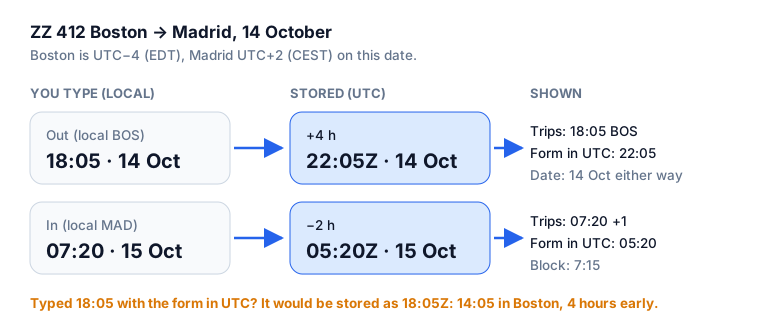
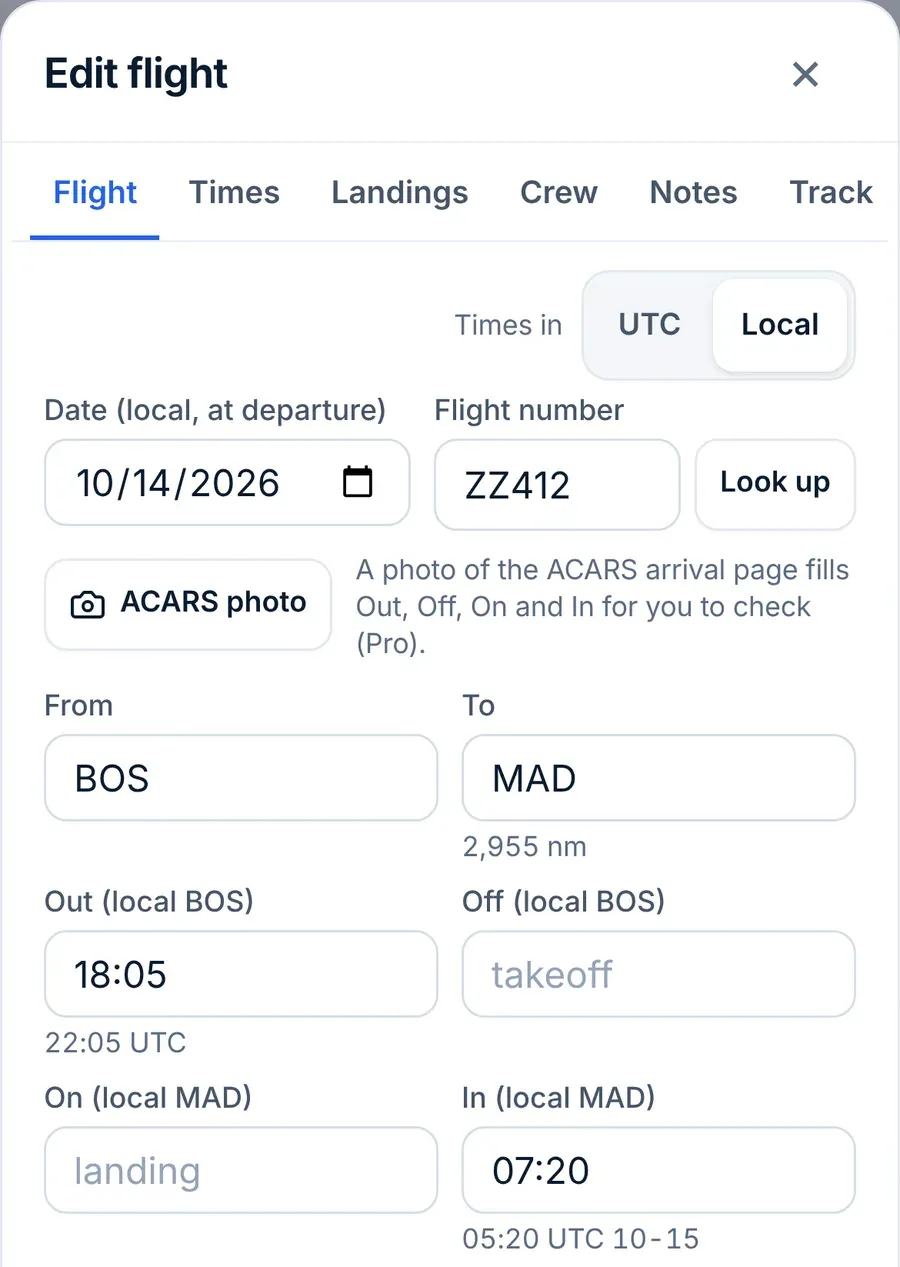
The flight form has a UTC / Local switch at the top of its Flight tab. In UTC the labels read Date (UTC) and Out (UTC); in Local, Date (local, at departure) and Out (local BOS). The default comes from Settings → Flight times on the form in.
| What you see | Why | What to do |
|---|---|---|
| Times off by exactly the UTC offset (4, 5, 7 hours…) | Typed local times with the form in UTC, or the other way around | Open the flight, check the switch, and retype the times in the mode the labels show. |
| A flight on the wrong day in the list | An evening departure in the Americas is already the next day in UTC | The list date is the local date at departure for rosters. For flights typed in UTC mode, the date is the UTC date. Switch to Local and set Date (local, at departure). |
| Off by one hour around March, October or November | The flight was entered or imported under the other daylight-saving rule | Retype the times on the form in Local mode; LogAloft applies the rule for that date. |
| Local times missing or shown in UTC | An airport code LogAloft doesn't know, so it has no time zone | Use the ICAO code (KBOS, LEMD). Small airfields are looked up from a wider list the first time they appear. |
| Block time wrong on an overnight leg | In time earlier than out on the clock, and the day didn't roll | Check the arrival shows "+1" in Trips. If not, fix the in time in UTC mode. |
Night time looks wrong
When you leave the night box empty on an operating leg, LogAloft fills it in on save. It follows the straight line (great circle) between the two airports from out to in, minute by minute, and counts the time the sun is more than 6° below the horizon at the airplane's position. That's the 14 CFR 1.1 definition of night (end of evening civil twilight to start of morning civil twilight). For the pilot flying, it also marks takeoffs and landings as night when they fall between 1 hour after sunset and 1 hour before sunrise, as 14 CFR 61.57(b) counts them.
| What you see | Why | What to do |
|---|---|---|
| A few minutes too much or too little | It uses out and in (block), not off and on, and the straight line, not the route flown | Type the night time from your company's figure; a typed value is never replaced. |
| No night time on imported flights | Night isn't saved until the flight is saved or you ask | Reports → Totals → Save the worked-out night time into those … flights. |
| Night on a flight that was in daylight | Times entered in the wrong zone (see above) | Fix the times; then clear the night box and save so it's worked out again. |
| No night on a deadhead or simulator | Night is logged only for operating legs | That's expected. |
Your authority's definition decides what you may log, and some authorities or operators set a different period. If yours computes night another way, type their figure.
Duplicate flights
| What you see | Why | What to do |
|---|---|---|
| The same leg twice, one from the roster and one from a logbook file | Two imports of the same flight that didn't match (different flight number format or times) | Reports → Logbook check lists "Logged twice?" with a Merge button. The copy from the more reliable source is kept (times from a logbook file win over a roster), with what's missing filled in from the other; Undo brings it back. |
| Duplicates after signing in on a second device | Both devices had the same flights before signing in | Usually matched by date, flight number and airports at first sign-in. Use Logbook check for the rest. |
| Many duplicates after an import | A file imported twice with different contents | Open the server backup from before the import and tap Replace, or select the extra flights in the list and Delete. |
The dose looks off
Each flight's dose line says what it's based on, under the dose on the flight form's Dose tab: From the track actually flown, From your track file, From the route and levels you entered, Estimate: based on the last time this flight flew, or Estimated from the airports and the day's winds.
| What you see | Why | What to do |
|---|---|---|
| "Estimate" on a recent flight | It hasn't flown yet, has no flight number, or its flown track isn't available | Recent flights are "Updated from the track flown once it has landed." On the free plan, flights outside the US have 2 flown tracks a month. |
| About 30% lower than your airline's figure | Your airline likely uses ICRP 60 | Settings → Dose standard → ICRP 60 to compare like with like. |
| About 10% lower than a dosimeter | Dosimeters read H*(10) | Choose H*(10) in the same setting. |
| A jump on one day | A solar or geomagnetic storm was added | Settings → Count solar and geomagnetic storms turns that part on or off; storm doses are less certain. |
| A deadhead adds dose | You're exposed on board whatever your role | Expected: deadheads and commutes count toward dose, not flight time. |
| A long ocean crossing seems low or high | Gaps in the flown track over the ocean | Enter the cruise levels you flew; the dose then uses them. |
For the model behind the numbers and its uncertainty, see the method.
Alerts not arriving
Gate and delay alerts Pro come as notifications from your browser or the installed app, and by email if you asked. Most missing alerts come down to a permission.
| What you see | Why | What to do |
|---|---|---|
| Nothing on iPhone | iOS sends web notifications only to an installed app, from iOS 16.4 | Install LogAloft (above), open it from the icon, and turn alerts on from inside it. |
| "This browser can't show notifications" | Permission was refused once, so the browser won't ask again | Allow it in the settings below, then turn the alert option off and on. |
| Nothing for a flight next week | Flights are followed from about 24 hours before departure, up to 3 days ahead | Wait; nothing can arrive earlier. |
| Nothing for one leg | No flight number, or a format the feed doesn't use | Make sure the flight number is the airline code plus number (ZZ412). |
| "You've used this month's 150 flight alerts" | The monthly fair-use limit | It resets on the 1st. |
| Alerts by email but not on the phone | The phone's notifications are off, or Focus / Do Not Disturb is on | Check the settings below. LogAloft emails you when no device could take a notification. |
Test it: Settings → Alerts and emails, untick Alerts for every flight on my schedule, then tick it again. A test notification should arrive within seconds.
Where notification permissions live
| Device | Where |
|---|---|
| iPhone, iPad | Settings → Notifications → LogAloft → Allow Notifications. Check Focus modes too. |
| Android | Settings → Apps → LogAloft (or Chrome) → Notifications. In Chrome: ⋮ → Settings → Site settings → Notifications → logaloft.com. |
| Mac | System Settings → Notifications → your browser; and in the browser, logaloft.com's site permission. |
| Windows | Settings → System → Notifications → your browser; and the browser's site permission. |
| Chrome or Edge on a computer | The icon left of the address → Site settings → Notifications → Allow. |
Updating the app and clearing the cache
LogAloft updates itself. When a new version is ready while you're using it, a bar says "A new version of LogAloft is ready." with Reload; if you leave it, the app reloads the next time you come back to it with nothing open.
| What you see | Why | What to do |
|---|---|---|
| A help page describes a button you don't have | An older version is still running | Close the app fully and reopen it, or tap Reload when offered. |
| The page stays broken after reloading | A stored file is damaged | Sync first (Your account → Sync now), then clear the site's data for logaloft.com in your browser settings and sign in again. |
Clearing site data, or deleting the Home Screen icon on iPhone, deletes the copy of your logbook on that device. Signed in and synced, nothing is lost: it comes back when you sign in. Not signed in, those flights exist only on that device. Download Full backup (.json) from Reports → Files first.
Other things people run into
| What you see | Why | What to do |
|---|---|---|
| The flight lookup found the wrong flight | Flight numbers are reused on different routes | Add the airports, like AA100 JFK-LHR, or search by airports and pick the flight from the list. |
| "Your free logbook is full" | 25 flights or 50 hours reached | See plans in Your account, devices, privacy and plans. Everything stays readable and exportable. |
| Commuting options say they come with Pro, during your trial | The app hasn't checked your plan since it started | Open Your account so the plan is checked again. |
| No Report time on a duty | The roster import didn't include it | Import the roster's own file or calendar link. |
Contacting support
Use the form at /support/. We read every message, and billing and sign-in problems come first. To get it fixed on the first reply:
- Pick the closest Topic: Import problem, Wrong or missing flight data, Alerts not arriving, Billing, Signing in, Radiation question, Feature idea or Something else.
- For a flight, fill in the Flight number and Date.
- Under What happened?, say what you did, what you expected and what you saw. Copy any message word for word ("Not synced: …").
- Leave the box ticked that includes app version, device and browser, time zone, plan and account ID. It never includes your flights or passwords.
- For a file that won't import, use Send it to us in Import instead: the support form doesn't take attachments.
For privacy requests (a copy of your data, or deletion), write from your account's email. You can also export or delete everything yourself; see Your account, devices, privacy and plans.
Common questions
Will reinstalling the app fix sync?
Rarely, and it removes the local copy. Try Sync now and check you're signed in with the same email first.
Why does the flight form open in UTC when I want local?
Tap Local at the top of the form's Flight tab. The switch and Settings → Flight times on the form in are the same setting, so the form opens that way from then on, on all your devices.
Can support see my logbook?
Only the details you choose to send and, if the box is ticked, your account ID to look things up. The privacy policy covers who can reach the systems.
My alerts stopped after I changed phones.
Notifications are tied to each device. Open LogAloft on the new phone, allow notifications, and turn the alert option off and on to register it.
Sources
- 14 CFR 1.1, definition of night: eCFR
- 14 CFR 61.57(b), night takeoff and landing experience: eCFR
- WebKit, Web Push for Web Apps on iOS and iPadOS (iOS 16.4): webkit.org
- Apple, Change notification settings on iPhone: support.apple.com
- Google Chrome Help, Turn notifications on or off: support.google.com
- ICRP Publication 103 (2007), the current dose standard: icrp.org
- LogAloft Privacy policy and Terms of service