Help › Getting started
Bring in your flights, every way
Move your whole history from another logbook, a spreadsheet or paper, and keep your roster flowing in from now on, without typing and without doubles.
This guide covers every way a flight can get into LogAloft, from a 20-year logbook export to the photo of an ACARS printout you took at the gate. You'll learn how LogAloft recognizes what you give it, how it decides whether a flight is new or one you already have, which source's times it trusts, and how to keep a roster up to date when crew scheduling changes it. Each source has its own tips, and there's a troubleshooting table at the end.
Before your first big import
Three minutes here save an evening of fixing later.
- Sign in. Signed in, your flights are synced and backed up every day they change, and you can use the email inbox and paper logbook reading. See Your first ten minutes.
- Set your seat and airline. In Settings, Imported flights logged as sets the seat (PIC, SIC, relief pilot or flight attendant) for flights from rosters and bookings, and their time goes to PIC or SIC accordingly. In About you, Airline or company lets a roster's bare "412" read as ZZ412.
- Make a backup point. Signed in, open Reports → Files and tap Back up now. Or download Full backup (.json) from the same place. If an import goes wrong, you can go back to this.
- Import oldest first. Bring in your old logbook file, then your paper years if you have them, then your roster. Your logbook file carries flown times; the roster carries the plan. Done in this order, the merge rules below do the right thing.
On the free plan the logbook holds 25 flights or 50 hours. A bigger import stops adding when it's full and tells you how many flights were left out. Where it's sold, Pro Pro starts with 14 days free, so import during the trial and nothing is left behind.
How an import works
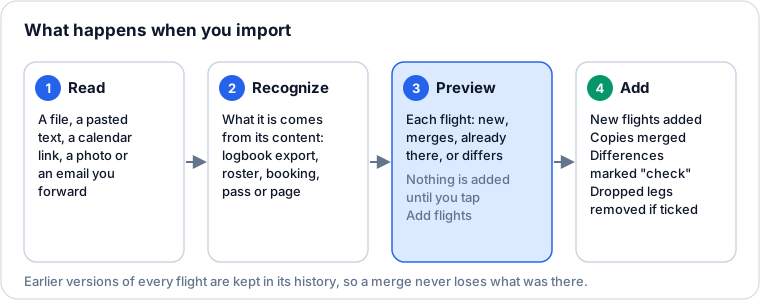
Tap Import in the logbook (on a phone, More → Import). The Import flights box has five tabs: File, Paste, Find my trip, Calendar link and Paper logbook.
Detection: you don't pick the format
You don't tell LogAloft what you're giving it. It looks at the content: a calendar starts with BEGIN:VCALENDAR; a LogTen file has LogTen's column names; a ForeFlight file starts with "ForeFlight Logbook Import"; a crew scheduling printout has the layout of FLICA, Sabre CrewTrac or AIMS; a picture is searched for a boarding-pass barcode first. When it recognizes the source, it says so ("Recognized: a LogTen export"). Anything with a header row and at least three columns it knows (date, flight number, from, to, times, hours) is read as a logbook table.
The preview: every flight, before anything changes
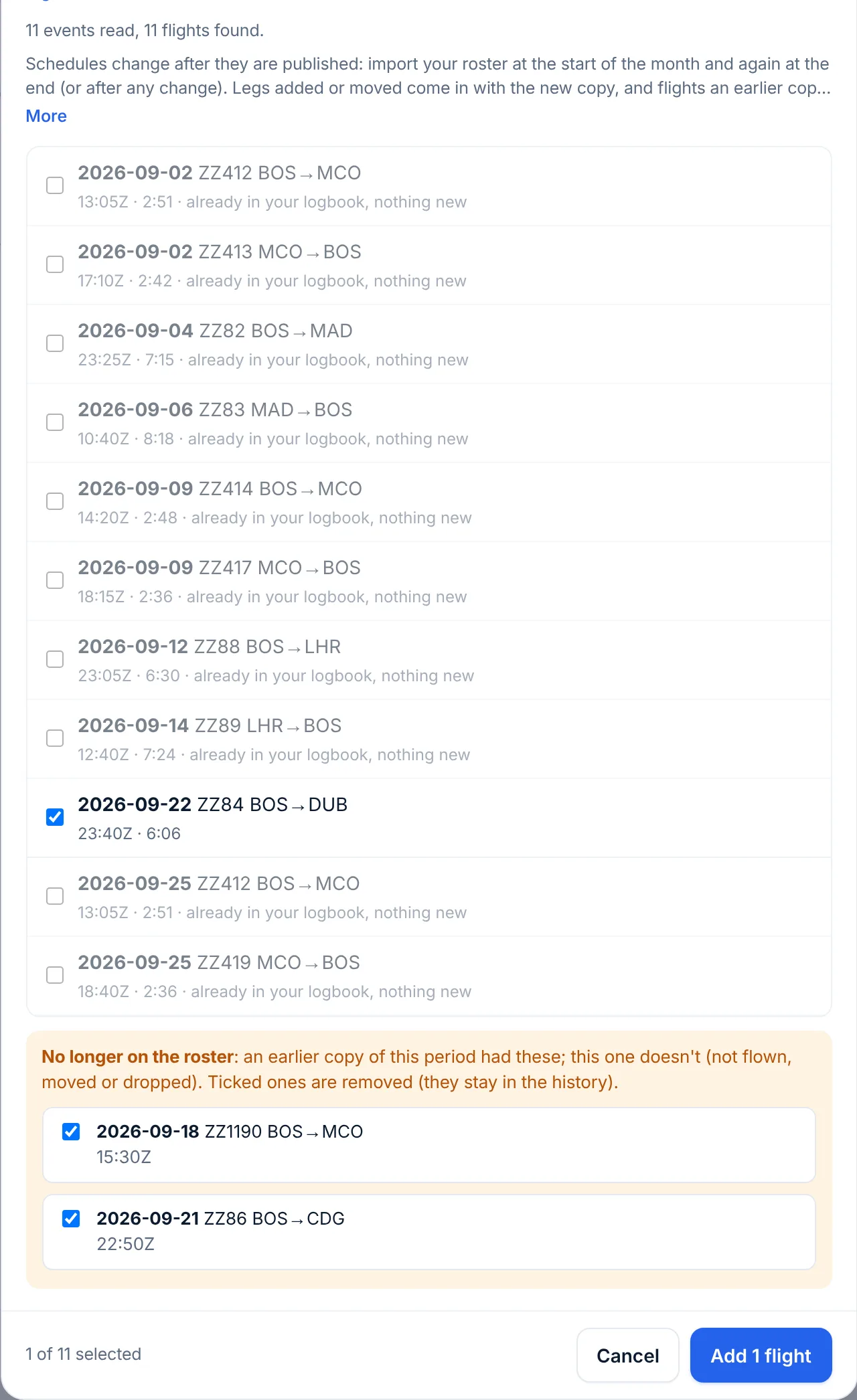
Nothing is added until you tap Add flights. The preview lists every flight found, each with a tick box:
| What the row says | What it means | Ticked? |
|---|---|---|
| Just the date, flight and route | A new flight | Yes |
| merges into the flight already there: adds … | You have this flight; the import fills in what's missing (the row names it: times, crew, tail, landings…) | Yes |
| already in your logbook, nothing new | You have it, and the import has nothing to add | No, grayed out |
| repeated in this file | The same flight appears twice in the file | No |
| ⚠ Times differ, Arrival differs, Date differs, lists it as a deadhead | The two sources disagree by 15 minutes or more, or on the route, date or role | Yes; after adding, the flight carries a check chip |
The footer counts what's ticked ("12 of 14 selected") and the button says what will happen ("Add 12 flights"). Untick anything you don't want. After you add, a short message sums it up: flights added, merged, removed and marked "check".
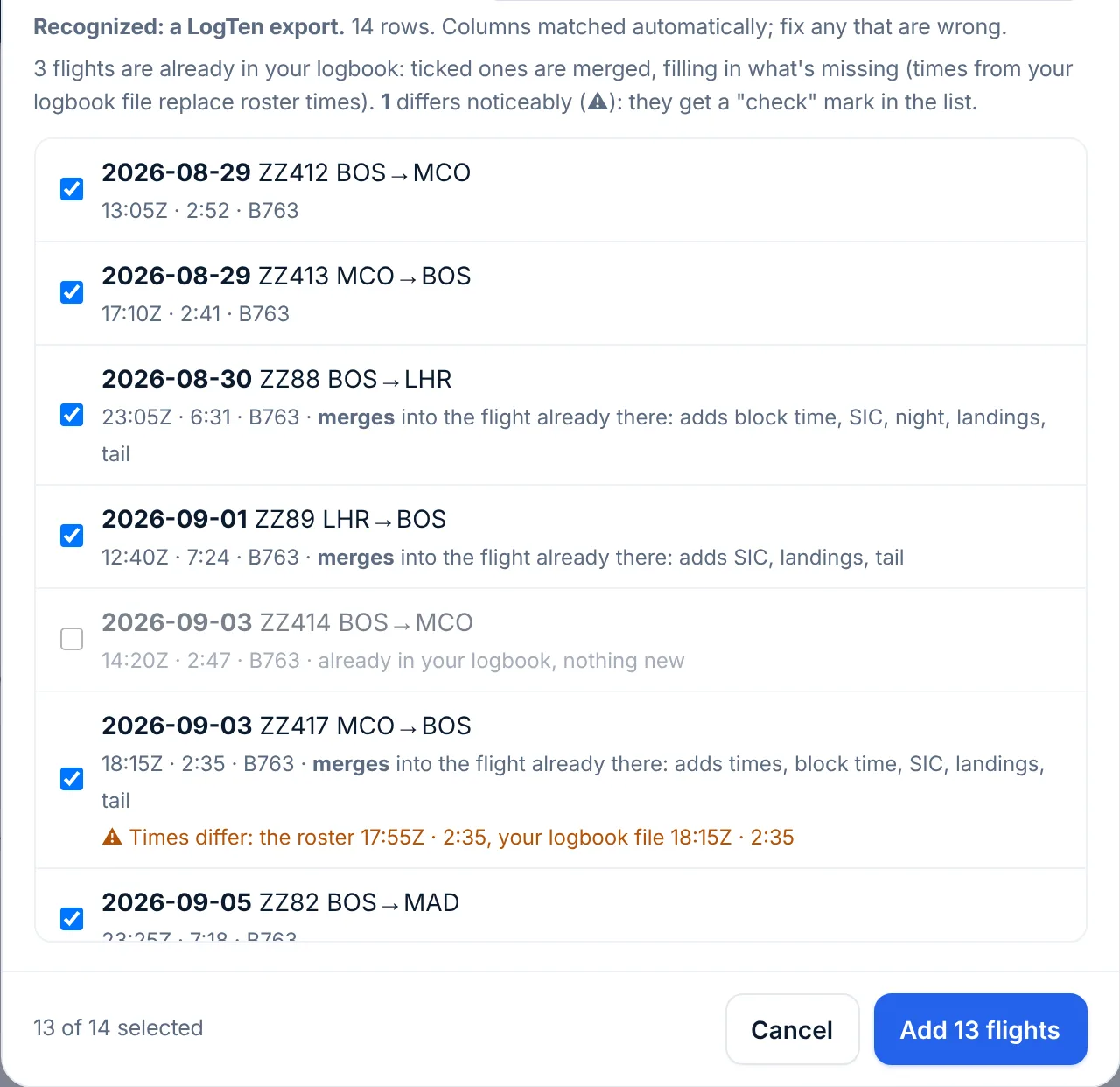
A check chip stays on the flight until you open it and tap Save. Hover over the chip on a computer to see what differed.
How LogAloft knows it's the same flight
An imported flight is matched to one already in your logbook when any of these is true:
- It's the same entry of the same calendar (rosters carry an ID per event).
- It has the same flight number within a day, with the airports agreeing. When the same number flies twice that day, the one whose airports and departure time match wins.
- It has no flight number, but the same day and the same airports.
- It has the same airports and an Out time within 2 hours: the same flight under a mistyped number.
- Both are simulator sessions on the same day with the same length.
Merging: whose times win
When two sources describe the same flight, they rarely agree to the minute. LogAloft ranks them for times:
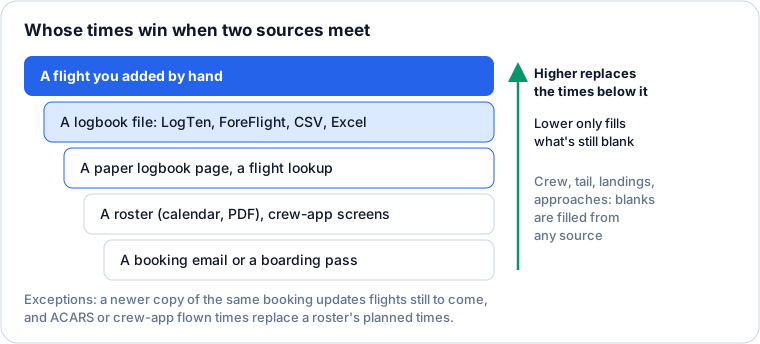
- Times (Out, Off, On, In, total) from a higher-ranked source replace those of a lower one. A lower one only fills a time that is still blank.
- Hours from a logbook file replace a roster's as a set. PIC, SIC, night, instrument and cross-country from your file replace what the roster filled in, so you don't end up with the roster's SIC next to the file's shorter total.
- Everything else fills blanks: crew, tail, type, landings, approaches, hotel, booking code. A landing count from your logbook file also replaces a zero from a roster.
- Remarks are added to, never replaced.
- The roster's plan follows the latest roster: the pairing, scheduled block and trip totals.
- Two exceptions: a newer copy of the same booking (a newer confirmation email or trip page) updates flights still to come, because the airline changed the schedule; and the flown times from an ACARS photo or a crew app replace a roster's planned times.
- What you set by hand always stays. A field you typed or changed in the flight form, with the bulk Change…, or by restoring a version from the flight's history is never overwritten by a later import, whatever its rank and wherever the flight first came from. If the import disagrees, the preview flags it, for example "Times differ: what you typed 13:05Z · 7:42, the roster 13:20Z · 7:30", so you can check.
Before any merge, the flight's earlier version goes into its history (More → History on the flight).
From another logbook
Export from your current app and choose the file in the File tab. These are recognized as they are:
| Source | What to export | Notes |
|---|---|---|
| LogTen | A tab-delimited text file (.txt) | Times, crew, aircraft, approaches and remarks come across. |
| ForeFlight | The logbook CSV | Its aircraft table gives each tail its type; people and approaches come with their roles and details; simulator entries stay simulator. |
| MyFlightbook | CSV | Recognized by its column names. |
| CrewLounge PILOTLOG, mccPILOTLOG | CSV | Their times in whole minutes are converted to hours. |
| FlyLog, Logbook.aero | CSV | Recognized by their column names. |
| Logbook Pro, any other app | CSV | Read by its column names; check the matches. |
| Flighty | Settings → Account Data → Export Your Flights | Canceled flights are left out. Local times become UTC. |
| myFlightradar24 | Settings → Export → Download CSV | Local times become UTC. |
| AIMS logbook report, RosterBuster roster | CSV | Read as UTC. Set your airline first for bare flight numbers. |
If your old app exports PIC, SIC, night and cross-country separately, they come across as you logged them. LogAloft only works out night and cross-country for flights where those fields are empty; see Recording a flight.
Spreadsheets: CSV and Excel
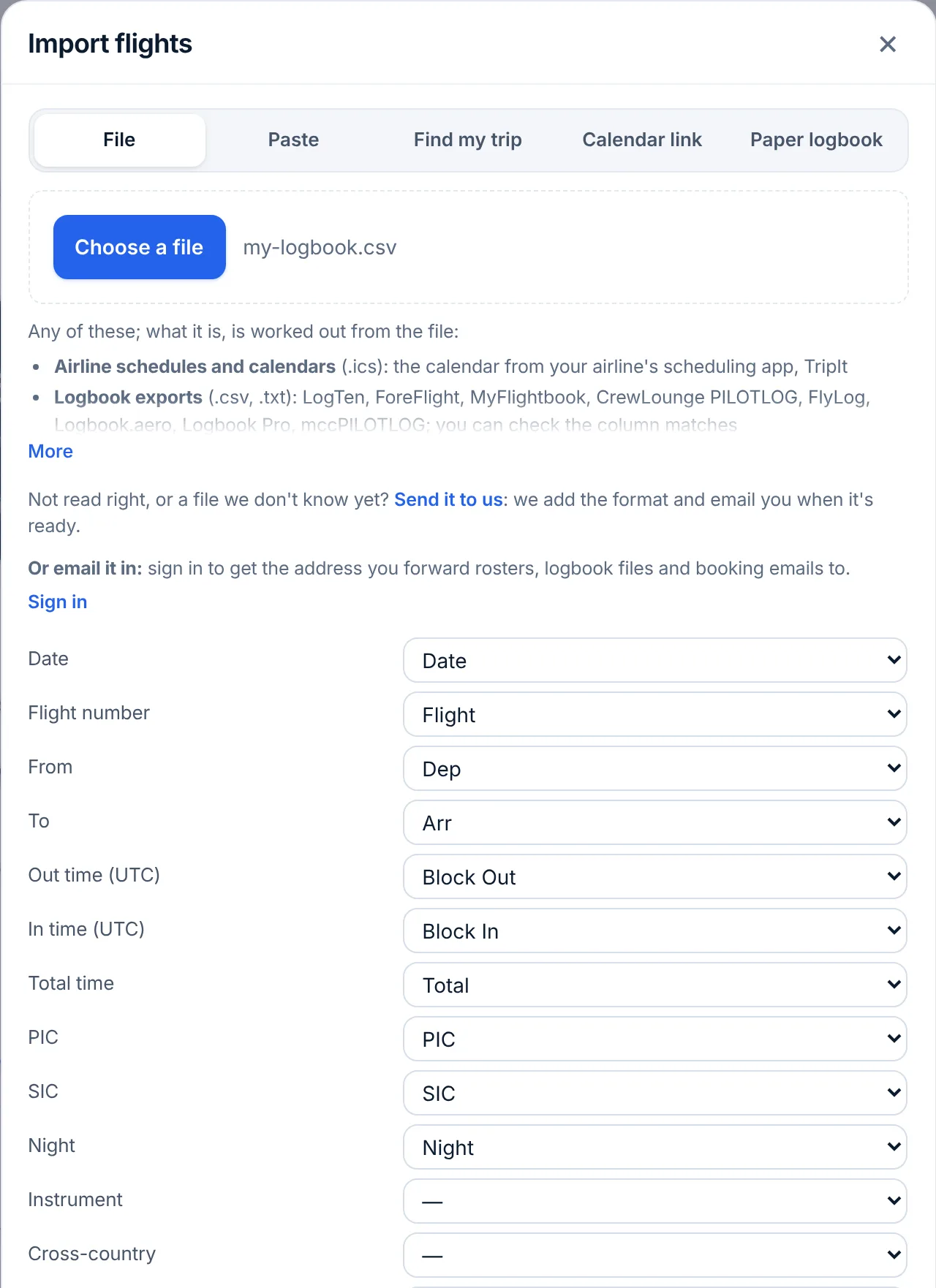
Any spreadsheet with a header row works: save it as CSV, or choose the Excel .xlsx file as it is (the sheet with the most rows is read; delete summary sheets that are bigger). LogAloft finds the header row in the first 60 rows, matches the columns it knows, and shows you the matches as a list: each LogAloft field (Date, Flight number, From, To, Out time (UTC) and the rest, one under the other) with a drop-down of your file's columns beside it. A field with nothing to match shows "—". Below the list, a line says what was recognized and "Columns matched automatically; fix any that are wrong", and under it is the preview. Change any match that's wrong, or set it to "—" to ignore that column; the preview updates as you go.
Rules worth knowing:
- A date column is required. Without one, LogAloft asks you to choose which column holds the date.
- Day or month first? When dates like 03/08 could be either, LogAloft guesses from the file and your browser and says so, with a link to read them the other way.
- Clock times are read as UTC. If your sheet has local times, convert them first, or the flights shift by your time zone. Full date-times with a Z are read exactly.
- Hours can be h:mm (7:35), decimal (7.58) or decimal with a comma (7,58).
- Rows without a date, airports, times or hours are skipped (blank lines, page totals, roster codes), and the preview says how many and which rows.
- Older formats (.xls, Apple Numbers, .json, .xml) aren't read. Save as CSV or .xlsx. A LogAloft backup (.json) goes back in with Restore a backup… in Reports → Files.
Your roster
A calendar link (best)
Most airline scheduling apps publish your schedule as a calendar you can subscribe to.
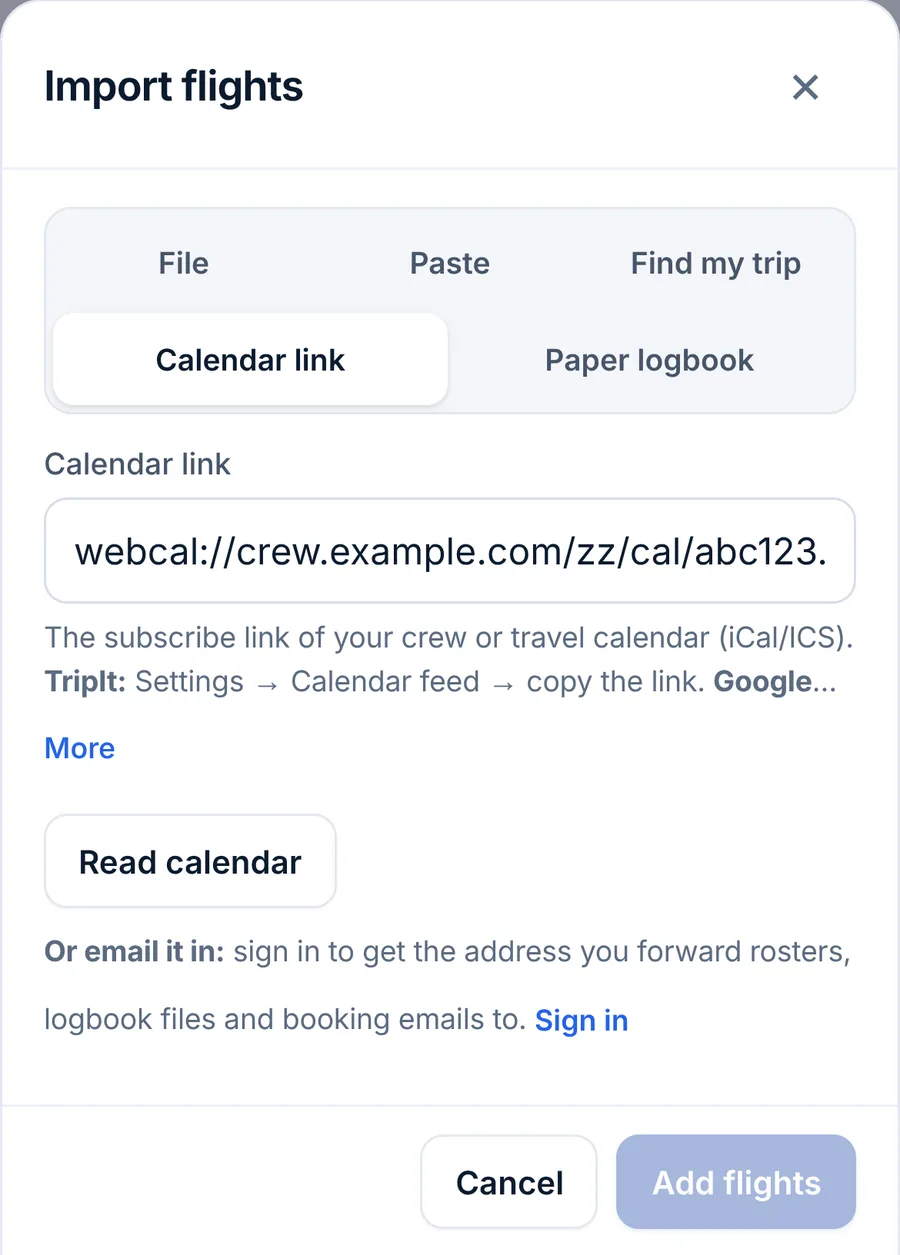
- In your crew app or crew portal, find the calendar subscription and copy its link. It starts with webcal:// or https://. TripIt: Settings → Calendar feed. Google Calendar: the calendar's settings → "Secret address in iCal format".
- In LogAloft, open Import → Calendar link, paste it and tap Read calendar.
- Check the preview and tap Add flights.
LogAloft keeps the link on that device, so next time it's already filled in: open Calendar link and tap Read calendar. It isn't read in the background, and it isn't copied to your other devices. The link only passes through our server to fetch the calendar.
Roster files and printouts
Choose the file in the File tab, or forward it to your inbox:
- Calendar files (.ics) from any scheduling system.
- Line sheets as PDF (pairings with legs, report, departure, arrival and block).
- FLICA pairings: copied from the page and pasted in Paste, or saved as PDF.
- Sabre CrewTrac's Pairing Print Report and AIMS's Personal Crew Schedule Report.
- Avianca's monthly activity calendar (Calendario de actividades reales), with simulator sessions, reserve and other ground duties.
Deadheads, report times and the layover hotel and pickup come in when the roster has them. Local times are converted to UTC with each airport's time zone. From Avianca's calendar, reserve and other ground assignments go to Reports → Duty & rest, not to the logbook, and days off aren't added at all.
Schedule changes: import twice a month
A roster is a plan. After it's published, legs are added, swapped, moved or not flown, and LogAloft can't know unless you give it the newer copy. Import your roster at the start of the month and again at the end, or after any change.
When you import a roster for a period you imported before (a file that covers a week or more):
- New and moved legs come in; the matching ones take the newer schedule.
- Flights the earlier copy had and this one doesn't are listed in an amber box, No longer on the roster, ticked for removal. A flight that also got times from your logbook file or the airline is left unticked, since it may well have flown. Removed flights stay in the history.
- From the 26th to the 5th, the Flights list reminds you to import the final roster of the month, with Import and Later.
- Signed in, we email crew members on the 1st asking for last month's final roster and this month's. Reply with them attached. Turn it off in Settings → Alerts and emails.
Photos read by AI
These are read on our server by an AI model and need you to be signed in. The photos aren't kept. You always check the result in the preview before anything is added.
Crew-app screenshots Pro
Take screenshots of your airline's crew app (the day list or a flight's page) and choose them in the File tab, up to six at a time. A picture without a boarding-pass barcode is read as a crew-app screen: flights, times, fleet and tail, and on a layover page the hotel, its phone and the pickup. A flight already in your logbook gets its type and tail filled in. A month grid of icons has no times, so nothing is added from it. Crew names are kept only if you tick Keep the crew's names on the flight; ID and license numbers never are.
ACARS photos Pro
The ACARS arrival page (or its printout) has the real OUT, OFF, ON and IN. Two ways to use it:
- For a flight you already have: open it and tap ACARS (the camera button next to Look up). The four times fill the form for you to check and save. LogAloft compares them with the page's ACT BLOCK and warns you when Out and In don't fit it, or when the screen shows another flight number.
- For one or several flights: choose the photos in Import → File. A screen that shows only a flight number and times (an MCDU ARRIVAL page) is matched to the flight in your logbook.
ACARS times are flown times: they replace a roster's planned times when they merge.
Paper logbooks
- Open Import → Paper logbook and tap Choose photos or a PDF.
- Add the pages: one page per photo, straight on, filling the frame, in daylight, no flash. Take the left page, then the right page of each spread; they're put back together. A photo of the whole open logbook or a scan of a spread works too: the pages are found, cropped and split. So does a PDF.
- If the pages don't show the year (trip logbooks often don't), type it in Year of these pages.
- Tap Read the pages. Each page takes a minute or two; they're read at the same time. Up to 60 pages per import.
- Check every flight in the preview. Cells the reader wasn't sure of are named on the row, and a page whose rows don't add up to the totals written on it is flagged.
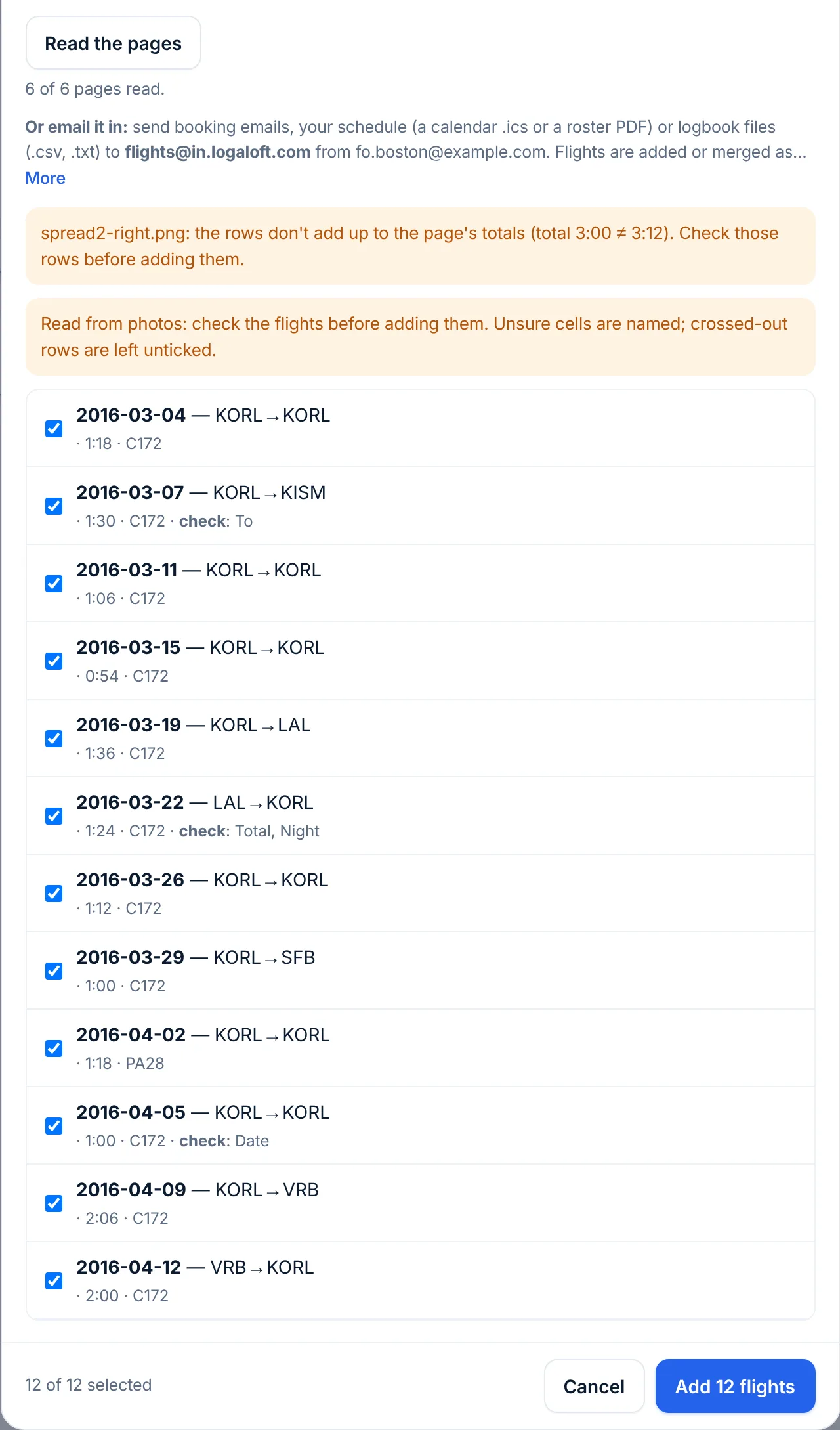
A photo that's too small, too dark or blurred is sent back right away. A page the first reading can't read reliably is sent back with what to change (more light, one page per photo, hold steady); Use what was read anyway keeps its rows, marked to check. Faint pencil or rows without times are read a second time by a larger model. Logbooks from Spain and Latin America are read by their own columns (Etapas, Co-piloto, Autónomo, Total tiempo). A line listing a day's stops (BOG-PTY-BOG) becomes a flight per leg, with the line's hours shared out by distance and marked "check".
An AI reading of handwriting is a draft, not a record. Compare the totals of each page with your book before you rely on them, and keep the paper logbook: it's still your legal record for those years.
Passenger flights, deadheads and commutes
Find my trip
For flights you take as a passenger: Import → Find my trip. Choose the airline, tap Open the airline's trip page, find your trip there with the booking code and last name, copy the whole page (Ctrl+A, Ctrl+C; on a phone, press and hold, Select All, Copy), paste it back and tap Read flights. The page is read on your device; only the flights, seats and booking code are kept.
Boarding passes
Under Or a boarding pass in the same tab, or in File: a photo of a paper pass, a screenshot of a mobile one, a PDF or an Apple Wallet pass (.pkpass). The barcode is read on your device, with every leg, the seat, the booking code and your name. A pass has no times, so they're looked up right after the flights are added. Old passes don't say the year: the date nearest today is used, so check it.
Booking emails and schedule changes
Paste a confirmation email in Paste, choose a saved .eml file, or forward it to your inbox. When you import the same booking again, flights still to come take the new times, and flights of that booking it no longer lists are offered for removal in an amber Schedule change box. Forwarded emails mark them "check" instead of removing them.
Share to LogAloft (Android)
With LogAloft installed on the home screen, share a boarding pass, a roster PDF or calendar file, a booking email, a CSV or the text of a trip page from another app (your mail, Files, the airline's app) and choose LogAloft. The import opens with what you shared, as if you'd chosen it in File. iPhones don't offer web apps in the share menu; use the inbox instead.
By email: your forwarding inbox
Signed in, the Import box shows your forwarding address under Or email it in. Send it, as attachments or in the body:
- booking confirmation emails;
- roster files: calendars (.ics) and roster PDFs;
- logbook files: CSV, text (.txt) and Excel (.xlsx).
Flights are added or merged with the same rules as in the app, and you get a reply saying what was added and anything to check. Only email from your sign-in address is read. To send from a work address too, add it in Settings → Other addresses you email flights from; we email that address a link to confirm it once. Photos sent by email aren't read; import those in the app.
Set up a rule in your mail to forward your crew scheduling emails with the roster attached. Your logbook then fills itself, and the next sync brings the flights to every device.
Duplicates after the fact
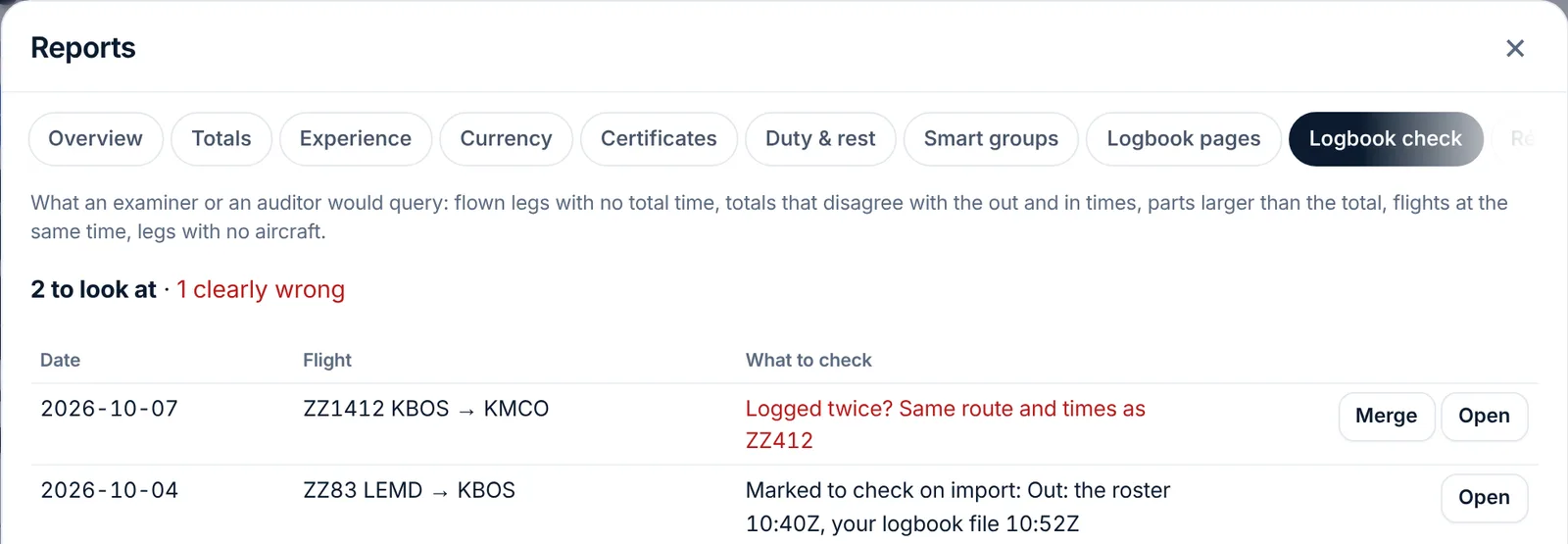
If two copies of the same leg got in (say, typed by hand and later imported with a different flight number), open Reports → Logbook check. It lists what an examiner would query: flown legs with no total, totals that disagree with the Out and In times, parts larger than the total, flights at the same time, legs with no aircraft. Each row names the flight with its IATA airport codes and a date like "10 Dec 2025". A pair marked "Logged twice?" has a Merge button that makes it one flight, with the same merge rules (a copy you changed by hand counts as typed); Undo on the message that follows puts both copies back.
Backing out of an import
There's no single undo for an import. Your options, from quickest:
- A few flights: open each and tap Delete. Undo shows for a few seconds.
- Many flights: in Flights, tap Select, pick the flights (search narrows the list; Select all shown takes every match), then Delete. Undo works here too, for a few seconds.
- Merged flights: a merge changed existing flights, so deleting doesn't undo it. For one or two, open the flight, More → History, and tap Restore this version on the line Merged from an import. For many, go back to your backup point: Reports → Files, and next to the backup from before the import, Replace. Your logbook as it is now is backed up first.
Troubleshooting
| What you see | Why | What to do |
|---|---|---|
| "LogAloft doesn't read this kind of file yet" | An .xls, Numbers, .json or .xml file | Export CSV or .xlsx, or tap Send it to us: we add the format and email you (signed in; under 5 MB; the file is deleted once the format is added, within 30 days in any case). |
| "No date column was recognized" | The header uses a name LogAloft doesn't know | Choose the date column in the matching grid. |
| Dates on the wrong month | 03/08 read the other way | Tap the link in the amber line to read them as day/month or month/day. |
| Every flight off by a few hours | The sheet's times are local | Export UTC times, or convert the columns before importing. |
| "N rows skipped" | Rows without a date that can be read, or without airports, times or hours | Usually page totals or blank lines. Check the row numbers listed. |
| Roster flights all logged as SIC (or PIC) | The seat in Imported flights logged as | Set it before importing. Changing Seat on a flight, or for many with the bulk Change…, moves the time with it when it held the whole flight. |
| Calendar link fails | Not a subscribe link, or the link expired | Copy the subscription link again (webcal:// or https://), not the address of a web page. |
| "No boarding-pass barcode found" for a crew-app screenshot | Not signed in, or not on Pro | Crew-app screens and ACARS photos are read for signed-in Pro accounts. |
| A paper page "sent back" | Too dark, blurred, two pages in one photo, glare | Retake as it says, or use Use what was read anyway and check its rows. |
| "Your free logbook is full" during an import | 25 flights or 50 hours | The rest weren't added. Start the trial or choose Pro and import the same file again: what's there merges, the rest is added. |
| A forwarded email got no reply | Sent from another address, or an attachment type not read | Forward from your sign-in address or a confirmed one; photos aren't read by email. |
| The same leg twice | Two sources that didn't match (a different number and times over 2 hours apart) | Reports → Logbook check → Merge. |
Common questions
Will importing my old logbook overwrite what I typed?
No. Anything you typed, whether on a flight you added by hand or on an imported flight you corrected later, is kept: the file only fills blanks there, and a difference is flagged in the preview ("Times differ: what you typed …"). Everything that changes is shown in the preview first, and each flight's earlier version is kept in its history.
I imported my roster and then my LogTen file. Which times did I end up with?
The logbook file's. A logbook file ranks above a roster for times, so its flown times replace the roster's planned ones, and its PIC, SIC, night and instrument replace the roster's as a set.
Can I import the same file twice?
Yes. Flights already there show as "already in your logbook, nothing new" and are left unticked. That's also how you finish an import that stopped when the free logbook was full.
Does the calendar link update by itself?
No. It's read when you tap Read calendar, on the device where you saved it. Read it again after your schedule changes, and at the end of the month.
Is the AI reading of my paper logbook private?
The pages are read on our server by an AI model (OpenAI's) and not kept by LogAloft; the provider's stored copy of the request is deleted once the page is read. Only the flights you add go into your logbook.
Why are some imported flights marked "check"?
Two sources disagreed by 15 minutes or more, or on the route, date or role, or the reader of a photo wasn't sure of a cell. Open the flight, fix what's wrong and tap Save; the mark goes away.
Sources
- LogAloft quick help: Bring in your flights
- RFC 5545: Internet Calendaring and Scheduling (iCalendar), the .ics format
- IATA Resolution 792: Bar Coded Boarding Pass (BCBP)
- 14 CFR 61.51, Pilot logbooks (what each entry must record)