Help › Your logbook
Editing, bulk changes, undo and history
Correct one flight or a hundred at once, take back a delete or a change, look through a flight's earlier versions and restore one, lock the entries that are final, and get an instructor's signature on an entry, in person or from a private link.
A logbook is only useful if it's right, and keeping it right means changing things: a tail that came in wrong from the roster, a month of legs logged as SIC that were relief, a deleted flight you need back, an entry you want to see as it was last week, a training flight your instructor has to sign. This guide shows how to do each of those in LogAloft, and explains what the app keeps behind the scenes so a change is never a silent loss.
It's for every pilot who keeps a logbook here. Instructor signatures are mostly for students, instructors and pilots doing flight reviews, IPCs and checkrides.
Edit one flight
- Tap the flight in your list (or on a trip or a day in the calendar). The Edit flight form opens.
- Change what's wrong. The form has tabs: Flight (date, flight number, airports, Out, Off, On and In, seat), Times (the logbook times), Landings, Crew (crew, aircraft and training), Notes (route, remarks, photos), Track and Dose. Times show in UTC or local time, as the UTC / Local switch on the Flight tab says.
- Tap Save.
What happens when you save:
- Times drive the totals. Change Out or In on a flight whose total came from its times, and the total follows, with PIC or SIC when they held the whole flight. Change the Seat from SIC to PIC (or back) and the time moves with it when it held the whole flight. Times you type are never replaced later by the times of the flown track.
- Parts can't exceed the whole. PIC, SIC, night, instrument, cross-country and the other parts of a flight can't be longer than its total time (a few minutes of rounding pass). If one is, the reason shows in red at the top of the form, under the tabs, naming the field.
- Unknown airports are looked up. If one still isn't found, a button offers to add it as an airport.
- A new route or date makes the dose stale, so it's worked out again.
- A "check" mark goes away. Flights an import wasn't sure about carry a check chip and a note at the top of the form; saving the flight clears it.
If you close the form with the × or Escape after changing something, LogAloft asks Close without saving your changes? first.
The More button at the bottom of the form holds the less frequent actions: Next leg, Return trip, Duplicate, Share, History, Sign flight, Lock and Choose fields (and, on a passenger leg, compensation for a delay or cancellation).
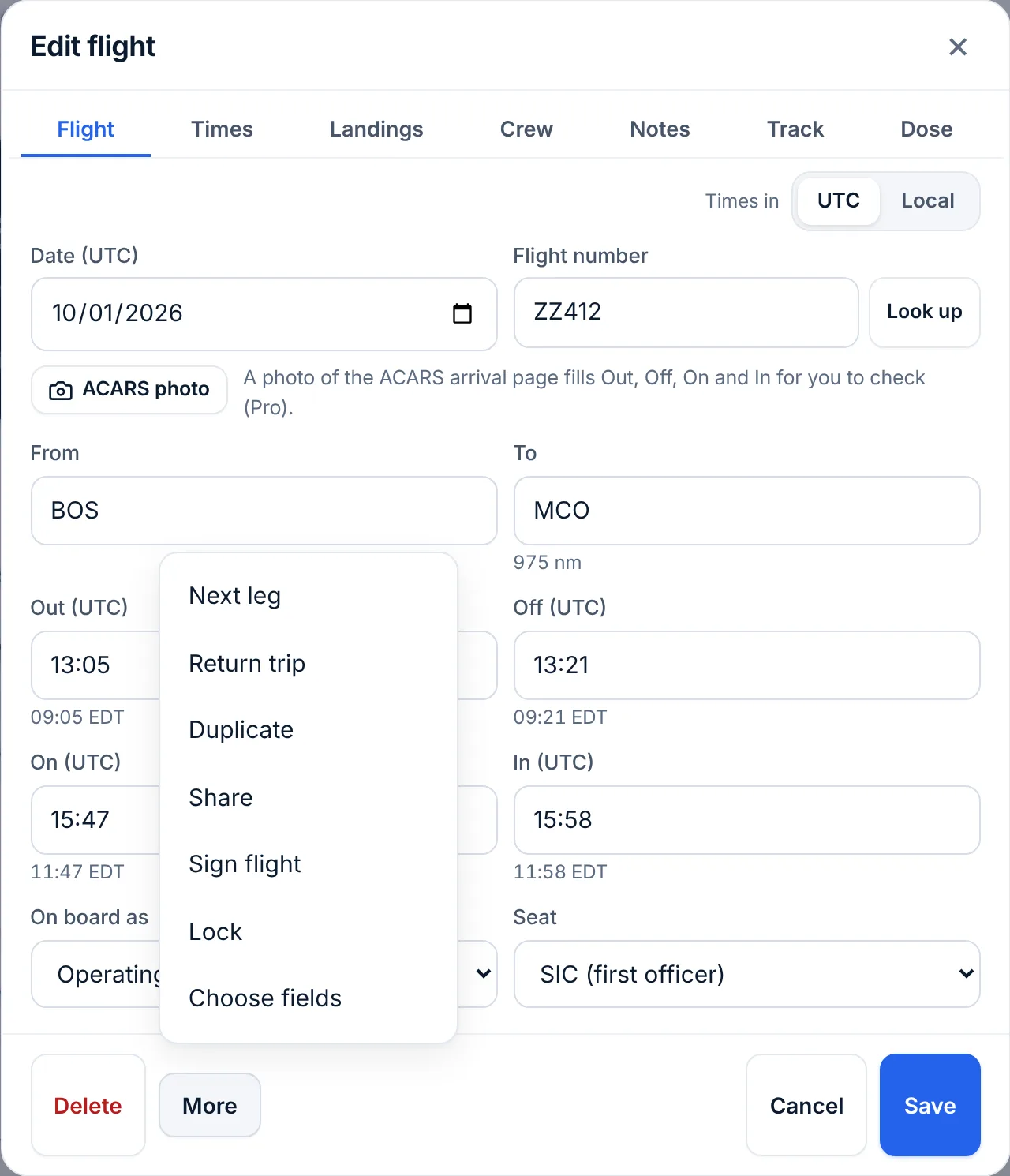
To see a field you don't fly with every day (PICUS, IFR time, Hobbs, taxi times, the training fields), use Choose fields. A field that already has a value on a flight always shows on that flight.
Change many flights at once
The flight list has a select mode for jobs like "these 40 legs were all N812ZZ" or "add 'IOE' to the remarks of my first month on the line".
- In the flight list, tap Select, under the search box. A tick box appears on each row and a bar appears at the bottom.
- Tap the flights you want. To pick a whole set, search first (a month, a tail, an airport, a word like "check"), or pick a smart group in the menu by the search box, then tap Select all shown.
- Tap Change…. The dialog's title says how many flights will change.
- Fill in only what should change. Empty boxes leave each flight as it is.
- Tap Change flights. A message says how many changed, with Undo for about 15 seconds.
- Tap Done to leave select mode.
The bar shows how many flights are selected, and also has Delete for removing them all.
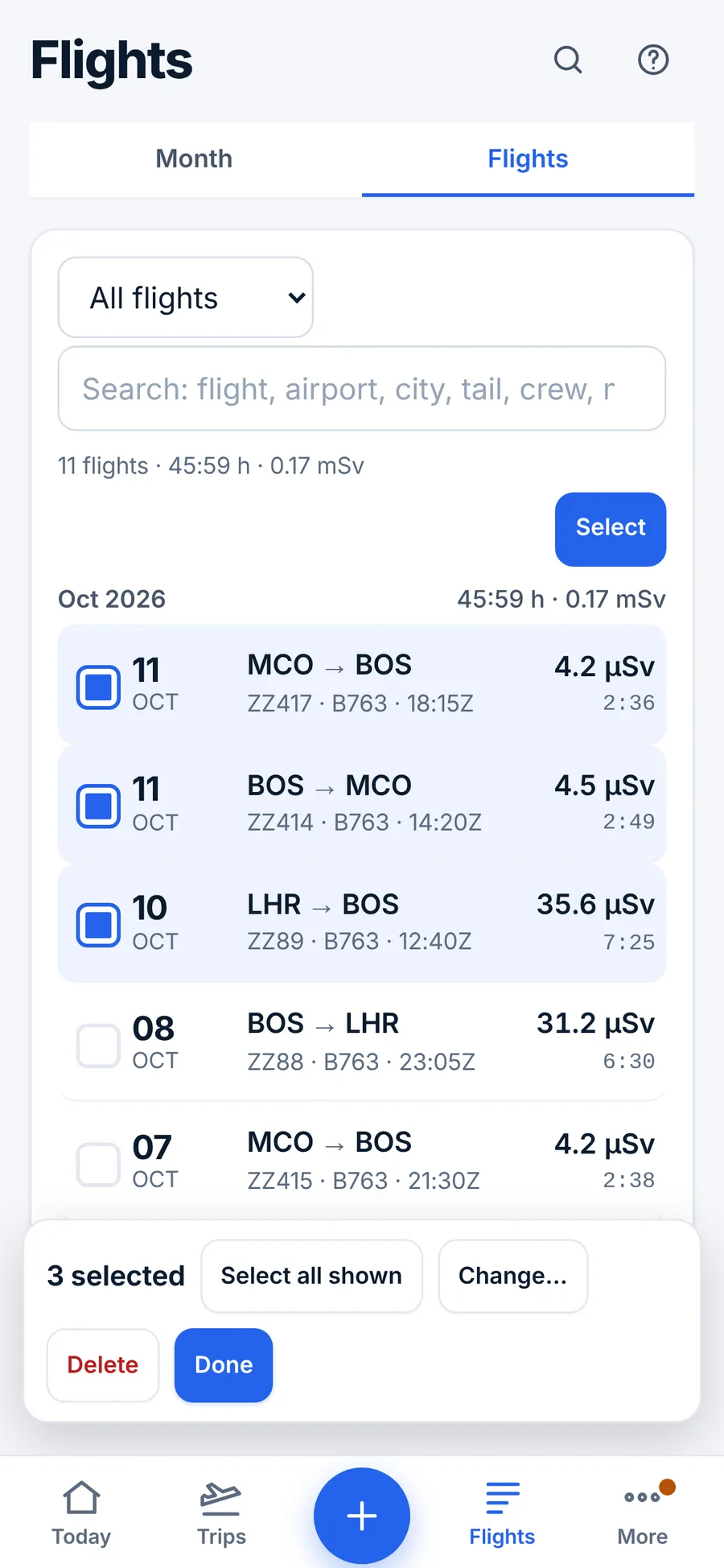
The fields you can set for all of them:
| Field | What it does |
|---|---|
| Aircraft type | Sets the type, for example B763 |
| Tail | Sets the registration, for example N812ZZ. A new tail is added to your aircraft list |
| On board as | Operating crew, Deadhead or Passenger |
| Seat | PIC, SIC or Relief. The PIC or SIC time moves with the seat, as in the flight form (see below) |
| Trip (pairing) | Sets the pairing number |
| Add to remarks | Adds your text after what's already there, separated by " · ". It never replaces remarks |
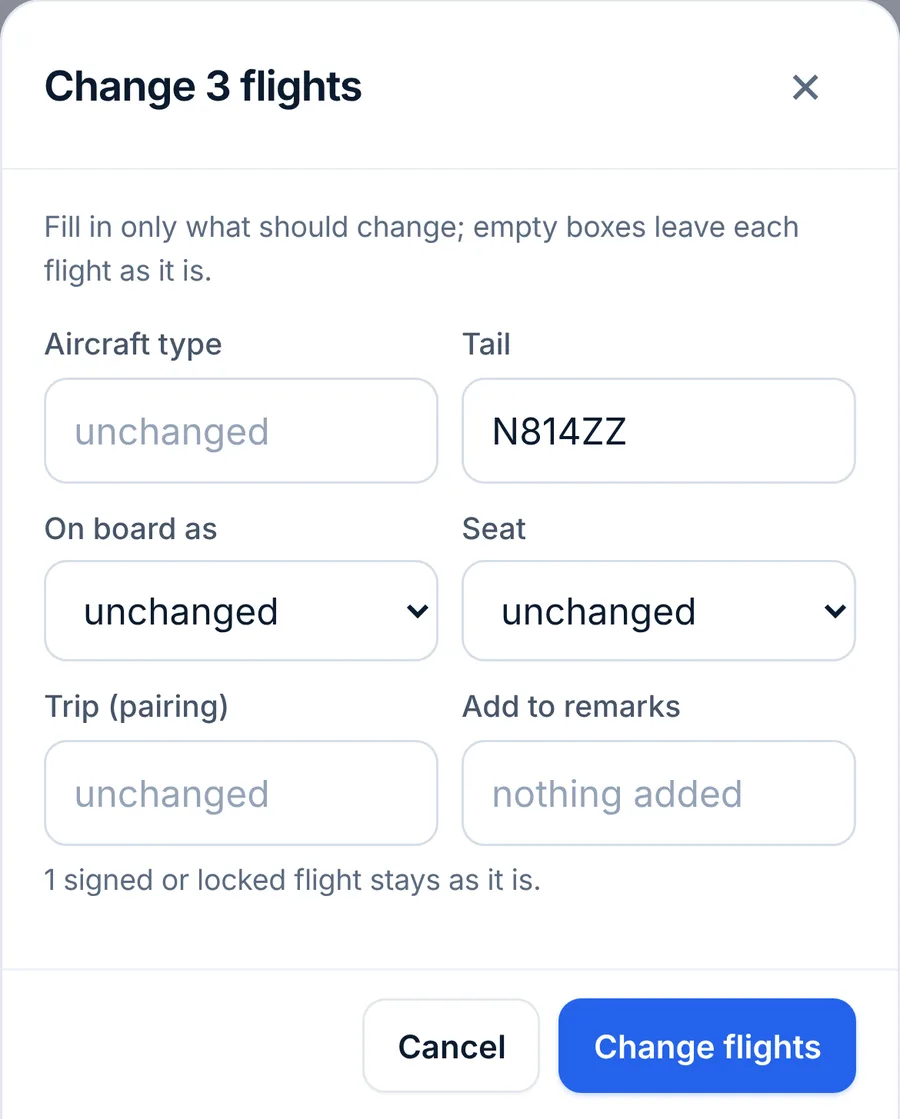
A bulk seat change moves the hours only when they held the whole flight. Changing the seat from SIC to PIC here moves each operating leg's SIC time to PIC, the same way the flight form does, when that time equals the flight's total (or the total less relief) and the other column is empty; a leg with no PIC or SIC yet gets its total in the new seat's column. A flight with PIC and SIC split, or with a part-flight value you typed, keeps its hours where they are: open it and fix the times by hand, or use Swap PIC and SIC on the form's Crew tab. A deadhead or passenger leg changes seat only. Check your PIC and SIC totals afterward.
Select all shown means shown. It picks the rows on the screen. Months folded shut aren't picked, and a long search or group shows its first 300 flights until you tap Show … more.
Signed and locked flights are skipped by both Change… and Delete. The dialog says how many will stay as they are; if every selected flight is locked, Delete says so and does nothing. When your free logbook is past its limit (25 flights or 50 hours) and read-only, Change… changes nothing and shows the plan message instead.
Undo
Deletes, bulk changes, restored versions and merges can be taken back with a tap, while the message is on the screen:
- One flight: Delete in the flight form removes it at once and shows a message with Undo for about 8 seconds. If you delete several flights one after another while the message is up, Undo brings all of them back.
- Several flights: Delete in select mode works the same way.
- From your account: Your account → Delete → Delete these flights… (flights from the last 1, 7, 30, 90 or 365 days) or Delete all flights… asks you to type DELETE, then gives you 30 seconds to undo.
- A bulk change: after Change flights, Undo puts every changed flight back as it was, for about 15 seconds.
- A restored version: after Restore this version (below), Undo shows for about 15 seconds.
- A merge: Reports → Logbook check → Merge shows Undo, which puts both copies back.
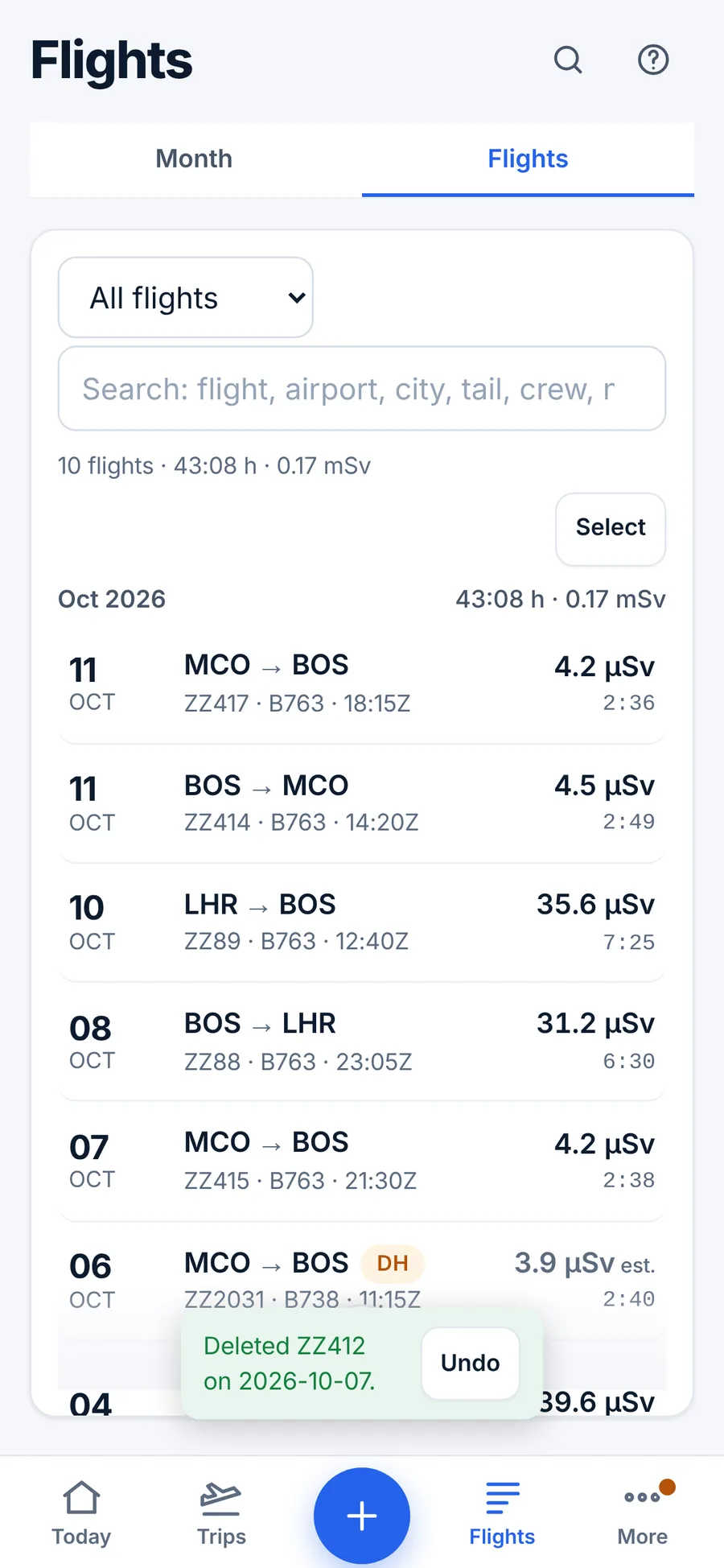
A save in the flight form has no Undo button. To take one back, open the flight's history and restore the version before it (below), or change the values back by hand.
The history of every flight
Each time a flight changes, LogAloft keeps a record on your device: when, and what each changed field held before. It does this for:
- every save of the flight form, with the old value of each field you changed;
- each bulk change (the old type, tail, role, seat, pairing, remarks, and PIC and SIC times);
- every delete, with a full copy of the flight, and every undo;
- locking and unlocking, and each signature added;
- a signature taken off by a later change (the signature itself is kept in the record);
- an import that replaced or removed a flight (a roster that no longer lists a leg, two copies merged into one);
- each restored version, and each undo of one.
Fields you set by hand (in the form, with the bulk Change…, or by restoring a version) are never overwritten by a later import: the import fills only what's empty, and a difference is flagged in its preview instead ("Times differ: what you typed …"). And whatever changes, the version before is still in the history. It holds the last 5,000 changes.
Look through a flight's history and restore a version
- Open the flight and tap More → History. The Flight history dialog opens.
- Read the list, newest first. Each line gives the date and time of the change, why it happened when it wasn't a plain edit (Merged from an import, Undone, Earlier version restored), and what changed in plain words, for example "Tail: N812ZZ → N815ZZ; SIC: 7:42 → —".
- To go back to how the flight was just before one of those changes, tap Restore this version on that line. The dialog and the form close, and a message says Earlier version restored. with Undo for about 15 seconds.
The restore is recorded as a change of its own, so it shows at the top of the list next time, and it can be restored away too. It puts back the flight's data fields only: a signature or a lock is never restored, and a line that changed only the signature or the lock has no restore button. On a locked or signed flight the buttons are grayed out, with This flight is locked: unlock it to restore a version.; unlock it first (remember that saving a change to a signed flight takes the signature off). On a free logbook past its limit, restoring shows the plan message instead.
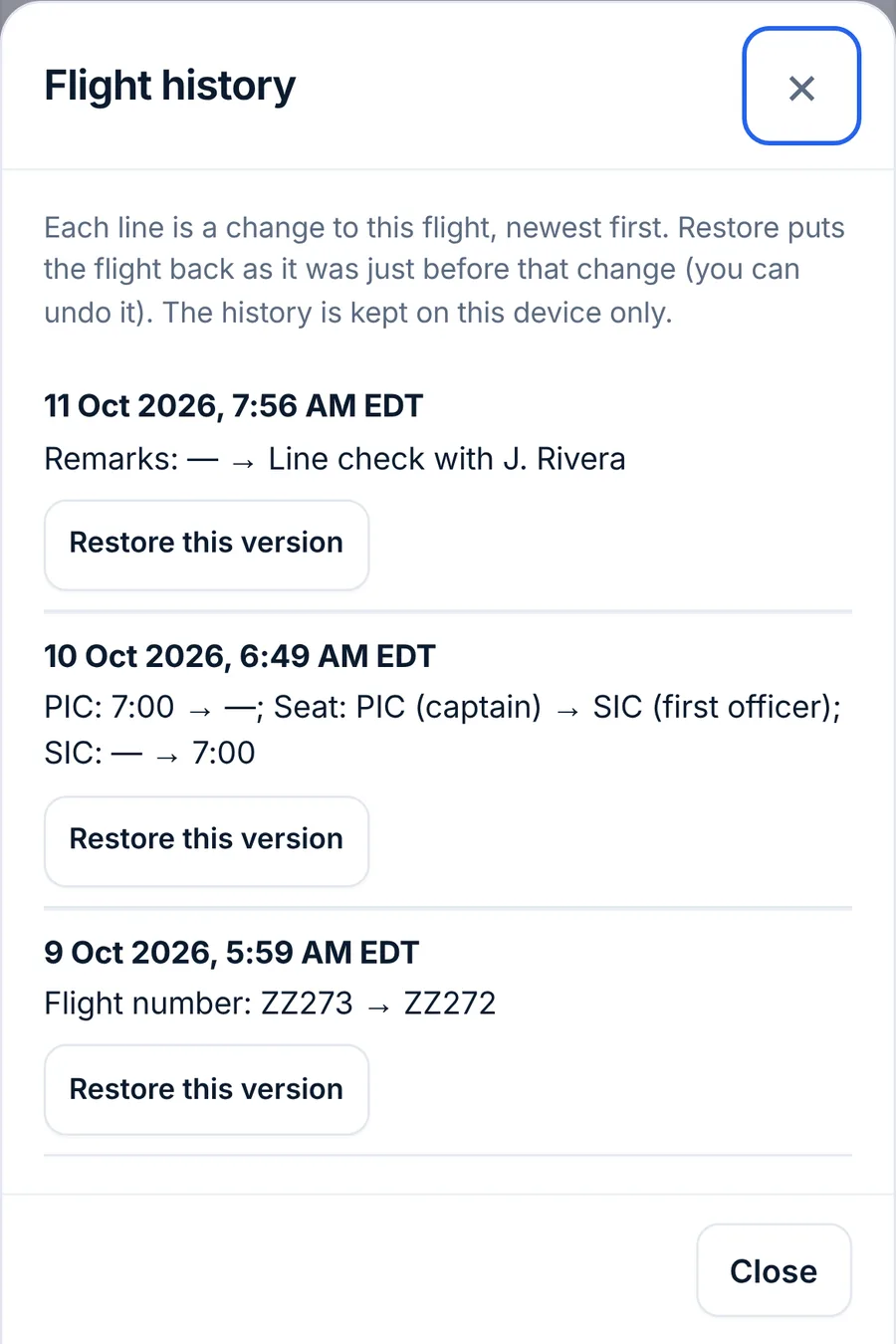
The history is kept on the device where the change was made. It isn't sent to your other devices, so History on your phone doesn't list a change you made on your computer, and Settings → This device → Delete all flights on this device clears it with the flights. It is in your Full backup (.json) file (Reports → Files), in a section named "hist", so it can be read from there if you ever need to prove what an entry said before.
Getting back a deleted flight
When the Undo message is gone, a deleted flight can still come back:
- Open Reports → Files. Under Backups on the server (signed in), find a backup dated before the delete.
- Tap Add missing. LogAloft adds the flights from that backup that aren't in your logbook now, and keeps everything else as it is.
LogAloft backs up your logbook on its server every day it changes, and when you tap Back up now. It keeps the last 7 days, one a week for 8 weeks, one a month for 12 months, and the last 10 you made yourself. Replace does something bigger: it makes your logbook exactly the backup, after backing up the current one first.
If you downloaded a Full backup (.json), Restore a backup… in the same place adds the flights from that file that aren't already in your logbook.
Locking an entry
A locked flight can't be changed by accident: it opens read-only, with Locked: this entry can't be changed. at the top, and the bulk Change… and Delete skip it.
- Open the flight and tap More → Lock.
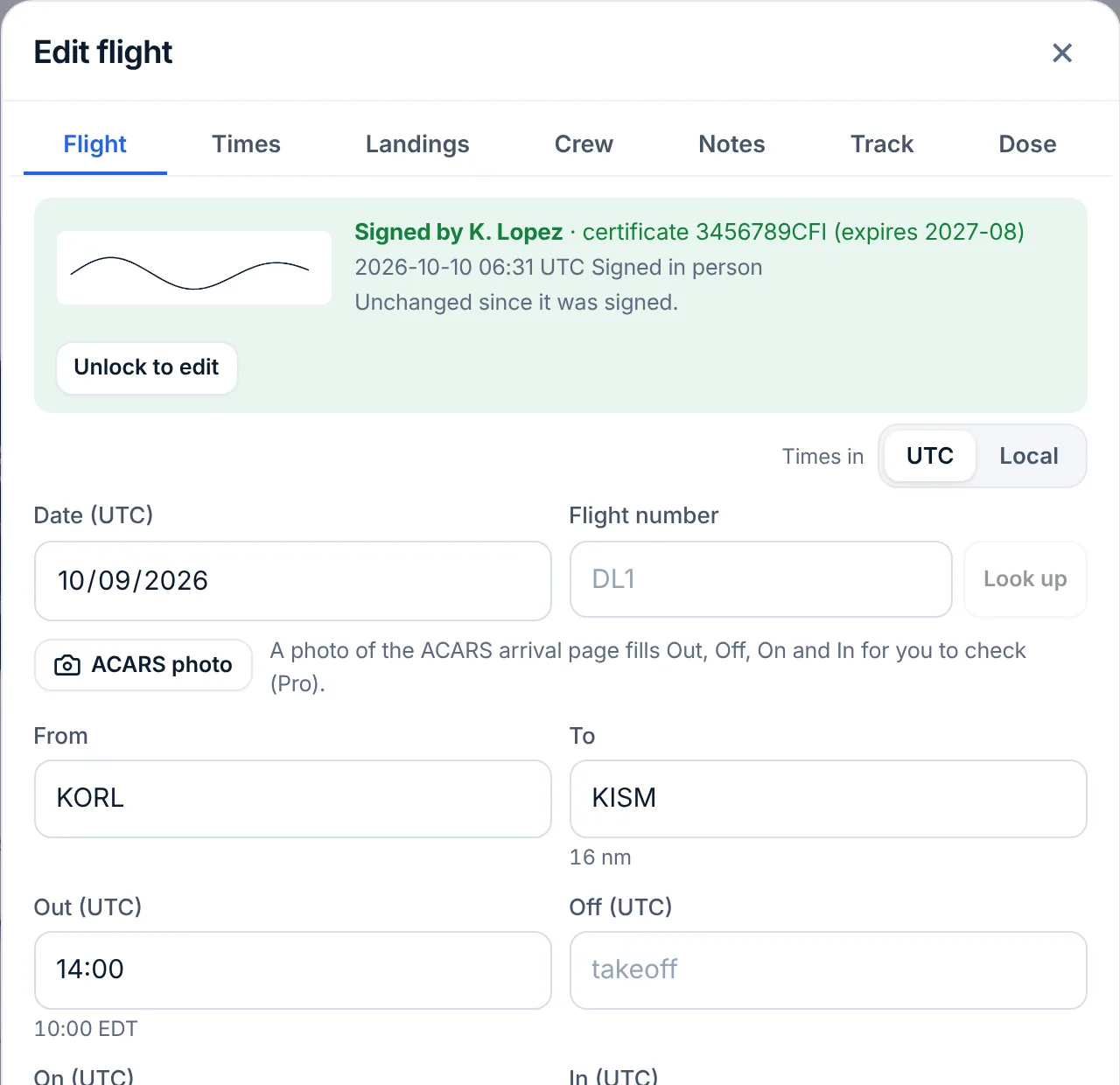
- To change it later, tap Unlock to edit at the top of the form (or More → Unlock), make your change and save.
Lock the entries that are final: a page you've already signed on paper, a checkride, the flights behind a certificate application. A signed entry is locked automatically.
Locks protect a flight from edits in the form, from bulk changes and from restoring an earlier version. Delete these flights… and Delete all flights… in Your account leave signed and locked flights out unless you tick Also delete the N signed or locked flights; deleting the account deletes them all. Download a full backup before any delete.
Instructor signatures
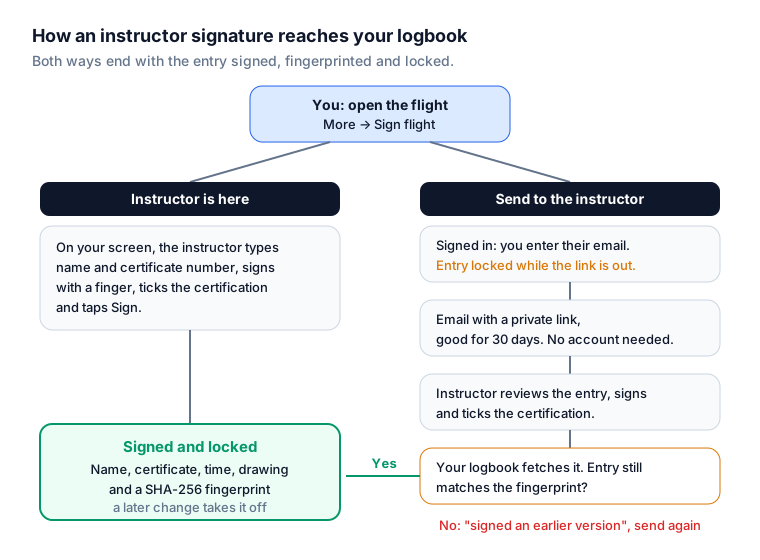
Under 14 CFR 61.51(h), training time you log must be endorsed by the authorized instructor, with a description of the training, the length of the lesson, and the instructor's signature, certificate number and certificate expiration date (or recent experience end date). 14 CFR 61.189(a) puts the same duty on the instructor: they must sign the logbook of each person they train. LogAloft lets the instructor sign an entry in two ways.
Before you ask for a signature
Fill in the flight completely first, because the instructor signs it exactly as it is saved. For a training flight that means the total time and Dual received, the day and night landings, approaches, and in Remarks a description of the lesson. The Training section, on the form's Crew tab, has Instructor, Instructor certificate and the boxes Flight review (61.56), Instrument proficiency check and Checkride. If you don't see it, turn on Instructor, flight review, IPC, checkride in Choose fields, or tick Settings → I also fly general aviation or train.
When your instructor is with you
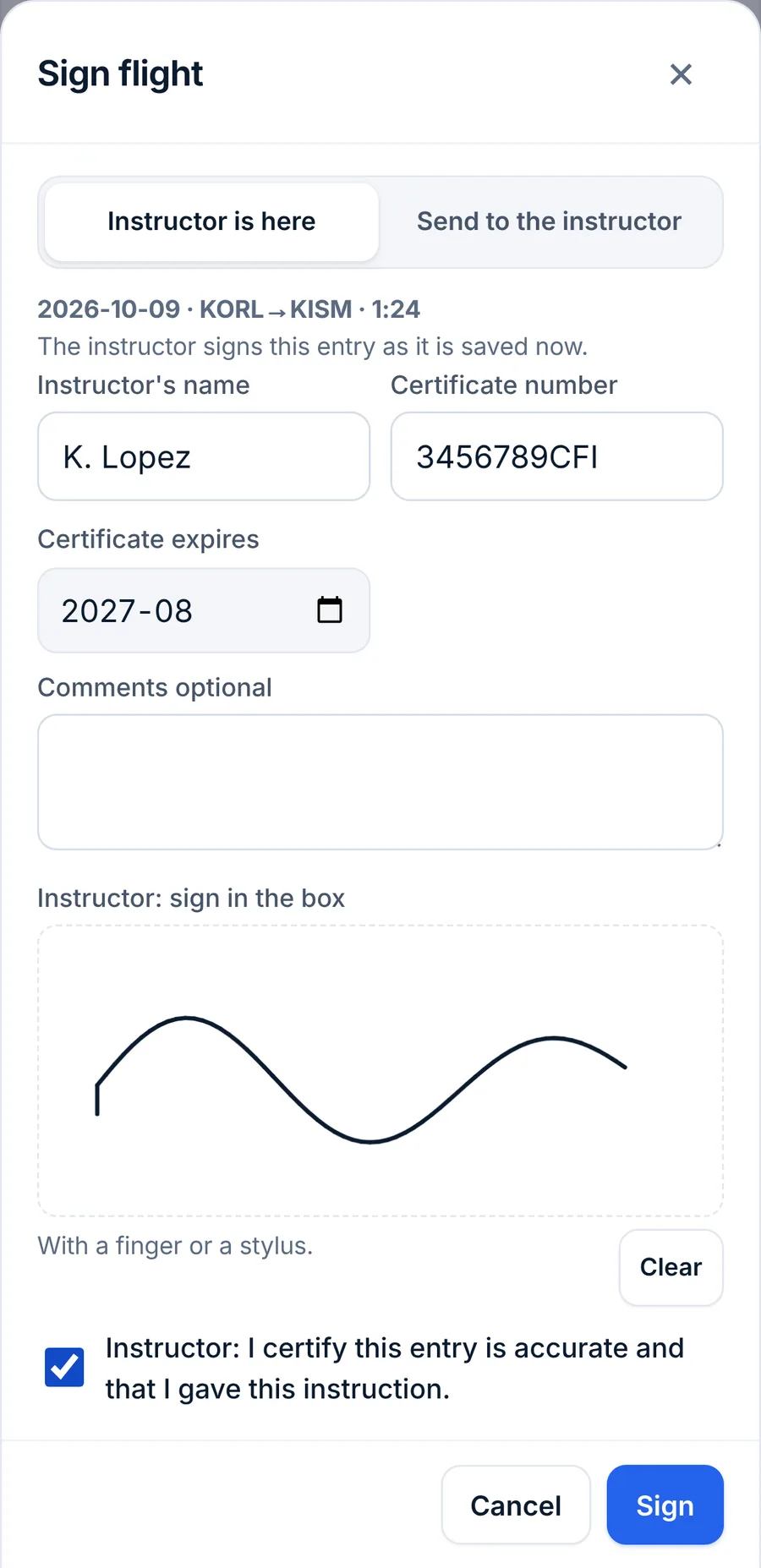
- Open the flight and tap More → Sign flight. LogAloft saves the flight first.
- Choose Instructor is here and hand over your phone.
- The instructor fills in Instructor's name, Certificate number and Certificate expires, adds Comments if they like, and signs in the box with a finger or a stylus (Clear starts again). On a flight with dual received, a note appears while Certificate expires is empty: 14 CFR 61.51(h) asks for the expiration date with the signature. It doesn't stop the signature (some instructors give their recent experience instead).
- They tick Instructor: I certify this entry is accurate and that I gave this instruction. and tap Sign.
The flight is now signed and locked. This works without an internet connection and without an account. When you're signed in, a copy of the signature and the entry's fingerprint is also kept on LogAloft's server as an archive.
When your instructor is somewhere else
You need to be signed in for this.
- Open the flight and tap More → Sign flight.
- Choose Send to the instructor, enter the Instructor's email (and their name, if you like) and tap Send the link. On a flight with dual received, a note reminds you to ask your instructor to fill in their certificate's expiration date on the signing page (14 CFR 61.51(h)).
- The entry locks while the link is out, and the flight shows a to sign chip in your list.
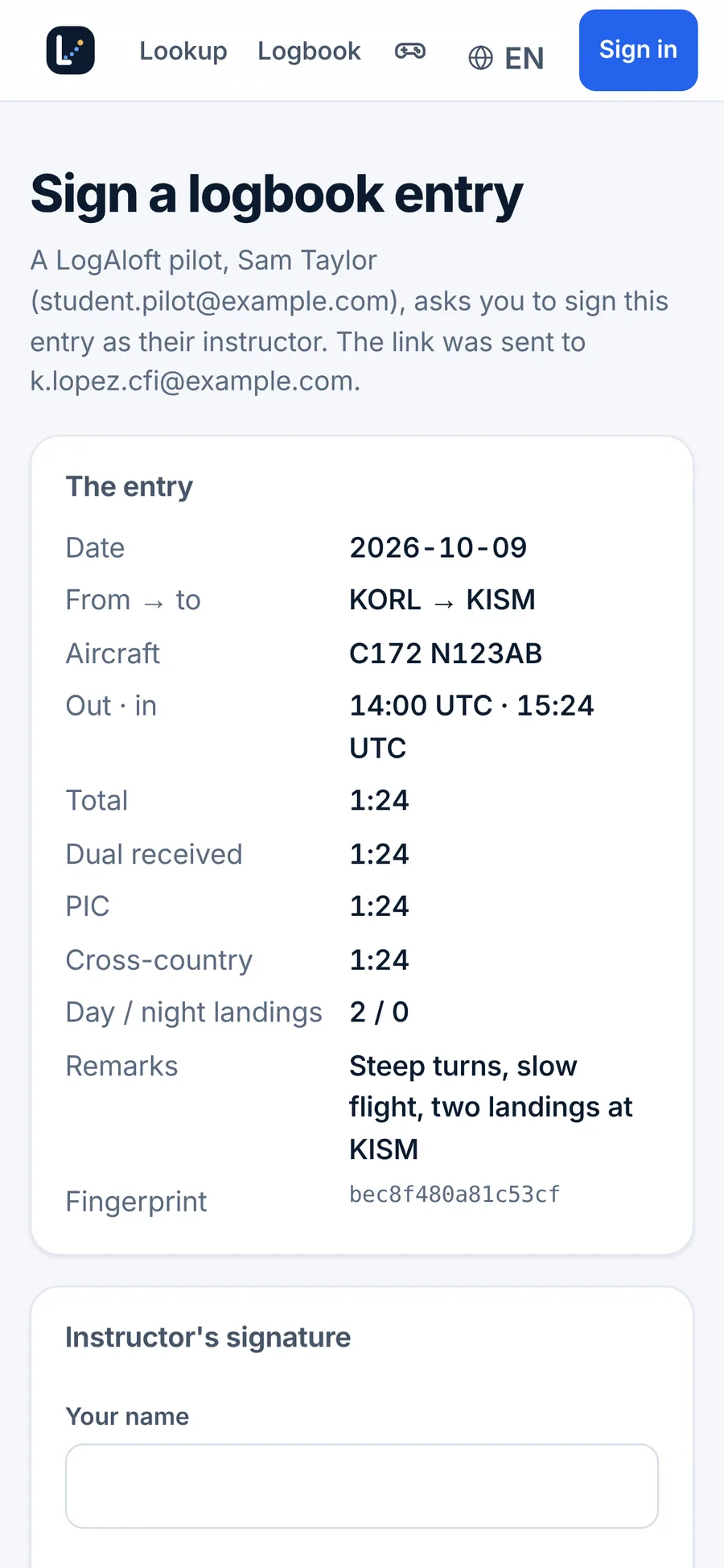
- Your instructor gets an email, "A pilot asks you to sign a logbook entry", with a private link that works for 30 days. They don't need an account or the app.
- The link opens a page with the entry exactly as you sent it: date, flight, airports, aircraft, times, dual, landings, approaches, remarks and a short fingerprint. Crew names and your dose aren't shown.
- They enter Your name, Certificate number and Certificate expires (or recent experience), add comments if they like, sign in the box (finger, stylus or mouse; Type it instead draws a typed name), tick the certification and tap Sign the entry.
- You get an email that it's signed. The next time LogAloft syncs, the signature comes into your logbook by itself and the chip changes to signed.
You can send up to 20 requests a day. Endorsements work the same way: in Reports → Certificates, add an endorsement (you can start from one of the common FAR 61 texts) and tap Sign.
What a signature locks, and what breaks it
A signature records the instructor's name, certificate number and expiry, comments, the time, the drawing, and a SHA-256 fingerprint of the entry: its date, flight number, airports, times, every time and count field, approaches, instructor details, the training boxes, remarks, role, seat, aircraft and your own fields. A signed flight opens with a green box: Signed by the instructor, when, whether in person or remotely, and either Unchanged since it was signed. or Changed after it was signed: sign it again.
- Signing locks the entry. It opens read-only and bulk changes skip it.
- Changing it takes the signature off. To change a signed entry, tap Unlock to edit. LogAloft warns you that saving a change removes the signature. If you save a change to any of the fingerprinted fields, the signature comes off; the signed version stays in the history, but restoring it brings back the data, not the signature. Then ask for a new signature.
- A late signature doesn't stick to a changed entry. If you changed the entry after sending the link, the instructor's signature doesn't attach. LogAloft tells you the instructor "signed an earlier version" and asks you to send it again.
- Unlocking or deleting withdraws a request. If the link is still out, unlocking or deleting the entry cancels it: the instructor's link stops working, and you can send a new one after your changes.
The signing flow follows the elements of the FAA's guidance on electronic signatures (AC 120-78B): the instructor sees exactly what they sign and says so, the link goes only to their email, the signature is tied to a fingerprint of the entry, and both of you are told when it's done. Whether an examiner, a training provider or your authority accepts an electronic signature is theirs to decide. If they ask for ink, print the entries from Reports → Logbook pages and have them signed there. Your training provider's procedures come first.
Common questions
Can I undo a bulk change?
Yes: tap Undo on the message that follows it, within about 15 seconds. After that, open each flight's More → History and restore the version before the change, or run the same bulk change again with the old value.
Can I see what a flight said before I changed it?
Yes, on the device where you changed it: More → History lists every earlier version with what changed. On another device, the history is in the full backup (.json) of the device that made the change.
I deleted a flight a week ago. Is it gone?
From your logbook and your other devices, yes. Signed in, use Reports → Files → Backups on the server → Add missing with a backup from before the delete.
Why can't I edit a flight?
It's locked or signed (unlock it from the top of the form), or your free logbook is past its limit of 25 flights or 50 hours, in which case flights can be seen, searched, exported and deleted but not changed until you go Pro.
My instructor signed, but the flight still says "to sign".
The signature comes in when LogAloft syncs (it checks at most once a minute). Open the app with a connection and wait a moment. If you changed the entry after sending the link, you'll see a message that they signed an earlier version: send it again.
My instructor's link says it has expired or isn't valid.
Links work for 30 days, and stop working if you unlock or delete the entry. Send a new one from Sign flight.
Do I need Pro for signatures?
No. Signing in person works on any plan, even without an account. Sending a link needs a free account.
Sources
- 14 CFR 61.51, Pilot logbooks, in particular (h) Logging training time (eCFR)
- 14 CFR 61.189, Flight instructor records (eCFR)
- FAA AC 120-78B, Electronic Signatures, Electronic Recordkeeping, and Electronic Manuals
- FAA AC 61-65K, Certification: Pilots and Flight and Ground Instructors (sample endorsements)