Help › Your logbook
Smart groups, totals and reports
Add up your logbook any way you need it, from one fleet's last 12 months to your turbine PIC time, and keep those totals current with smart groups that update as you log.
This guide is for any pilot who has to answer "how many hours on…?" more than once: for a job application, an insurance form, a type rating course or your own planning. You'll learn what a smart group is, how to build one with tick boxes instead of codes, which groups pilots actually need, and how LogAloft adds up your time so you can trust the number you copy onto a form.
Everything here works on every plan, including the free one, and it's all worked out on your device from the flights in your logbook.
What a smart group is
A smart group is a saved question about your logbook: "my flights on the B763 in the last 365 days", "everything I flew for ZZ", "my night landings this quarter". It isn't a folder you drag flights into. It's a set of rules, and each time you open the group LogAloft runs the rules again over the flights you've flown up to today. Log a new B763 leg tomorrow and the group's totals include it the next time you look.
Each group shows:
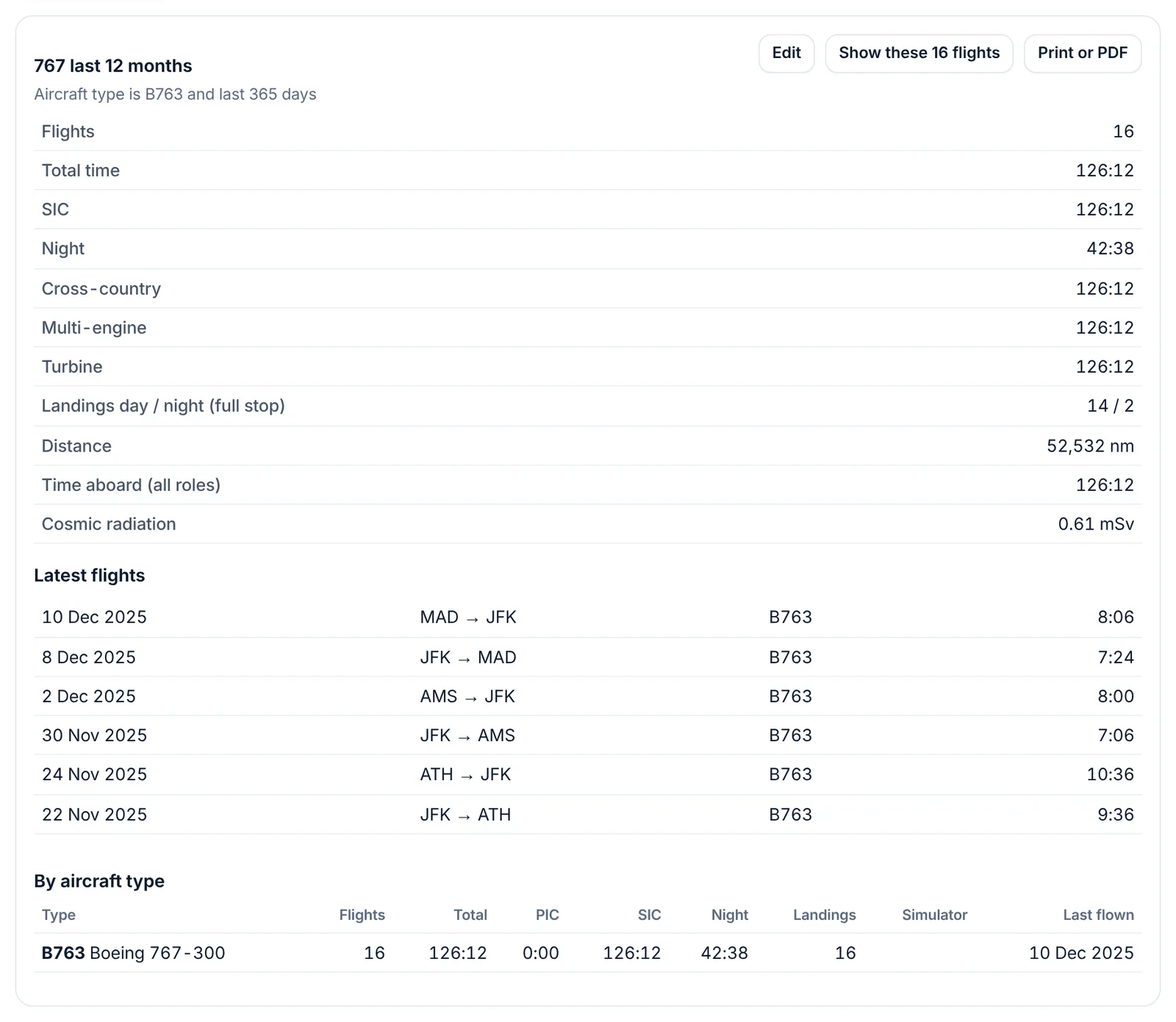
- how many flights match, with their total time, PIC, SIC, night, instrument, landings, approaches, distance and dose (rows with nothing in them are left out);
- the latest flights in it;
- the time by aircraft type.
You can also show the group's flights in your flight list, or print the totals.
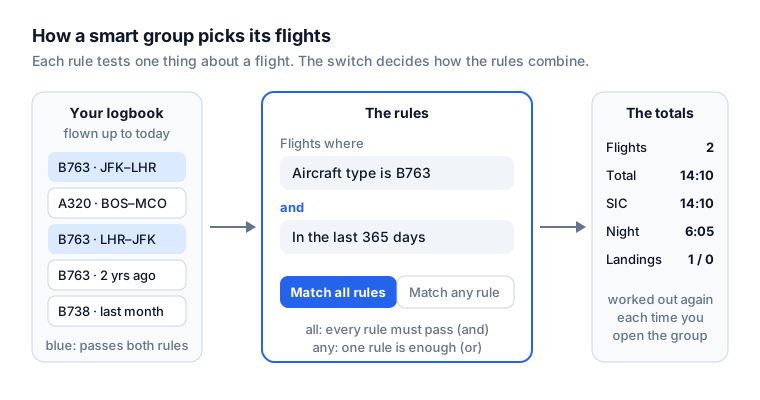
Your groups are kept with your settings, so when you're signed in they follow you to your other devices.
Start with the groups made for you
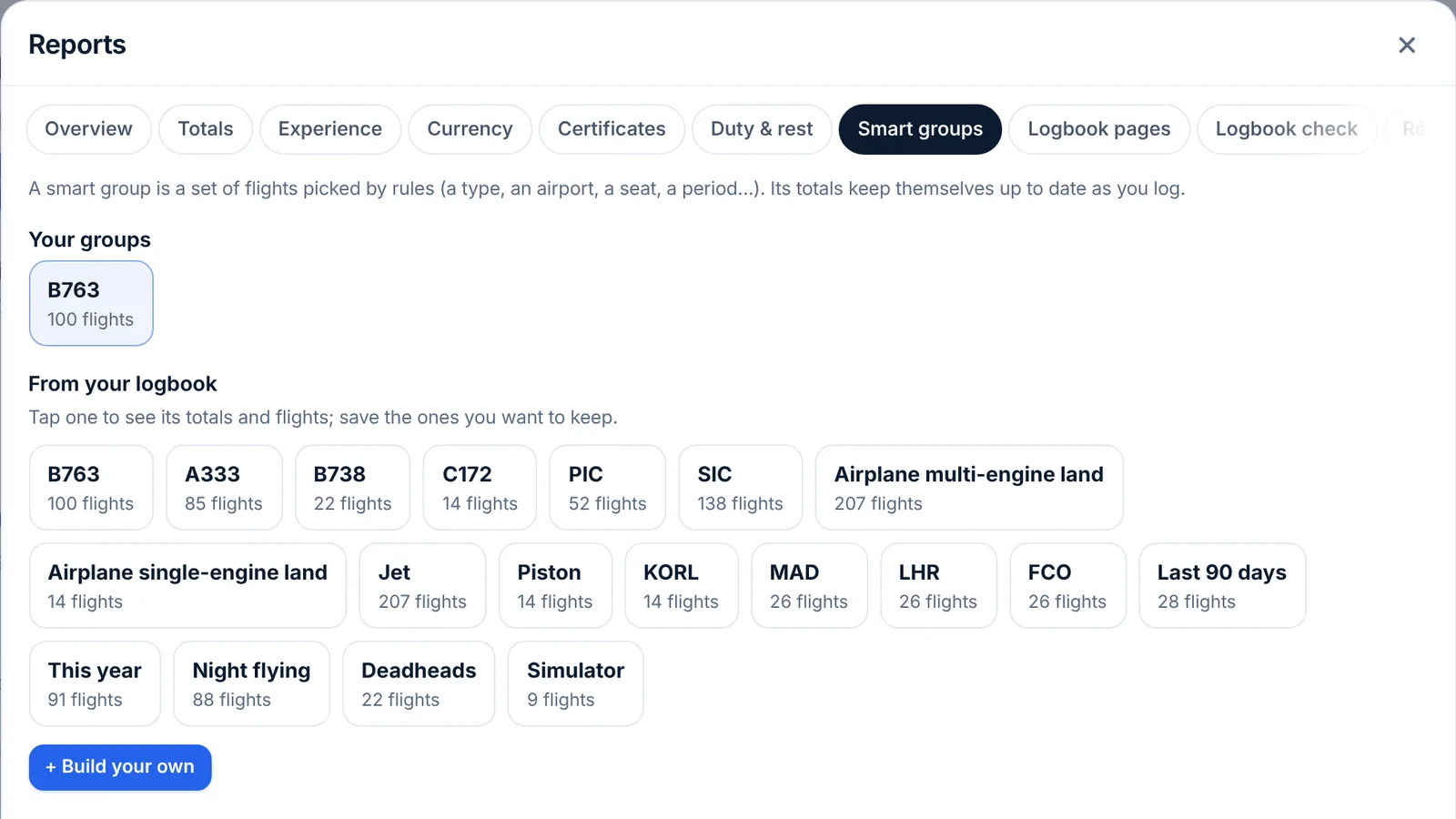
Open Reports (on a phone: More → Reports) and choose the Smart groups tab. Under From your logbook, LogAloft offers groups built from what's actually in your logbook, each with its number of flights:
| Suggested group | What it holds |
|---|---|
| Each aircraft type | Up to six types you've flown at least twice, most flown first |
| PIC, SIC | Flights where your seat is PIC, or SIC |
| Category and class | Your top three, such as Airplane multi-engine land, when you fly more than one |
| Engine | Jet, Turboprop, Piston…, when you fly more than one kind |
| Airports | The four airports you use most, leaving out your home base |
| Last 90 days, This year | By date |
| Night flying | Flights with any night time, logged or worked out |
| Deadheads, Simulator | Legs you rode as a deadhead, and simulator sessions |
A suggestion only appears when it splits your logbook: one that would match no flights, or every flight, isn't shown.
- Tap a suggestion. Its totals, latest flights and time by type open below.
- If you want to keep it, tap Save as a group. It moves to Your groups.
- To change a saved group, open it and tap Edit.
Build your own group
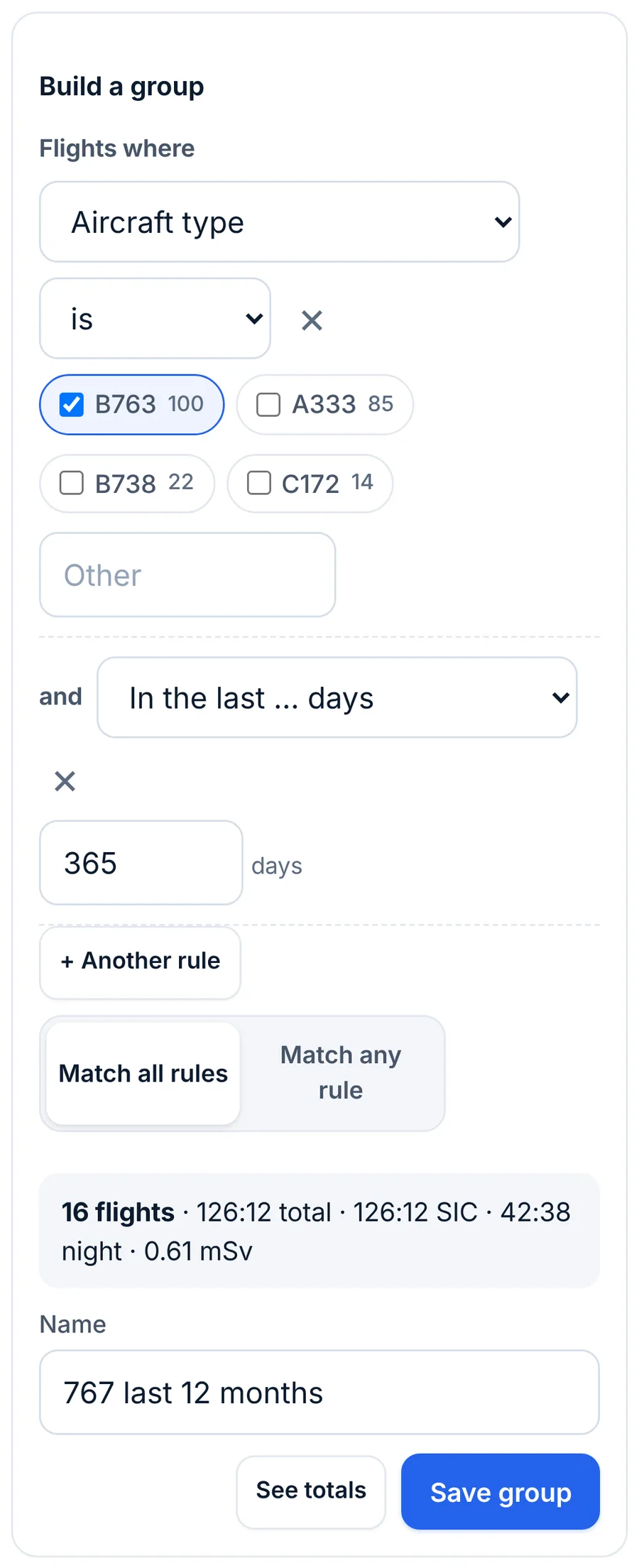
- In Reports → Smart groups, tap + Build your own. The builder opens with one rule that reads Flights where Aircraft type is …
- Choose what the rule tests from the first menu. The fields are grouped: Aircraft, Places, The flight, People, When, Hours and counts and Notes.
- Choose how it compares from the second menu (for example is, is not, contains).
- Give it a value. For types, tails, airports, airlines and the other text fields, LogAloft lists the values in your logbook as tick boxes, with how many flights each has. Tick one or several. A value that isn't in the list goes in the Other box (Other airport for airports); separate several with commas.
- Tap + Another rule for each extra condition, then choose Match all rules or Match any rule.
- Watch the line under the rules: it counts the matching flights and their hours as you go. Type a Name (or leave it empty and LogAloft names it from the rules).
- Tap See totals to try it, or Save group to keep it.
To delete a saved group, open it, tap Edit, then Delete group. Deleting a group never deletes flights.
Every field and how it compares
| Field | Ways to compare | Notes |
|---|---|---|
| Aircraft type, Tail | is, is not, contains, starts with | The type is the aircraft's type code (B763, A320) |
| Category and class, Engine | is, is not | From the type's record: Airplane single-engine land…, Jet, Turboprop, Piston… |
| Airport (either end), From, To | is, is not | ICAO or IATA both work: KJFK or JFK. "Either end" matches the departure or the arrival |
| Country (either end) | is, is not, contains, starts with | From the airports' ICAO codes |
| Flight number, Airline | is, is not, contains, starts with | The airline comes from the flight number's prefix: ZZ 412 belongs to ZZ |
| Trip (pairing) | is, is not, contains, starts with | The pairing number from your roster |
| On board as | is, is not | Operating crew, Deadhead, Passenger, Simulator |
| Seat | is, is not | PIC, SIC, Relief, Flight attendant |
| Pilot flying | is, is not | Yes or No |
| Crew member, Instructor, Remarks | is, is not, contains, starts with | For crew, use contains with a last name (see Common questions) |
| In the last … days | a number of days | Today and the days before it: 90 means today and the 89 days before |
| Date | on or after, on or before | Use two Date rules for a range |
| Total time, PIC, SIC, Night, Instrument, actual, IFR, Cross-country, Dual received, Dual given (all in hours); Day landings, Night landings, Approaches; Distance (nm); Dose (µSv) | more than, less than, equal to | Hours are decimal here: 1.5 is 1:30 |
How the comparisons behave:
- is with several values ticked means "any of these". is not means "none of these". With "Airport (either end) is not KJFK", neither end may be JFK.
- contains and starts with take the text you type and ignore upper and lower case.
- A rule with no value is ignored, so a half-built rule doesn't empty your group.
- Only flights dated today or earlier are counted. Flights still to come aren't in any group.
Groups pilots actually need
These are worked through with the fictional ZZ airline. Your values come from your own logbook.
Totals by aircraft type for a job application
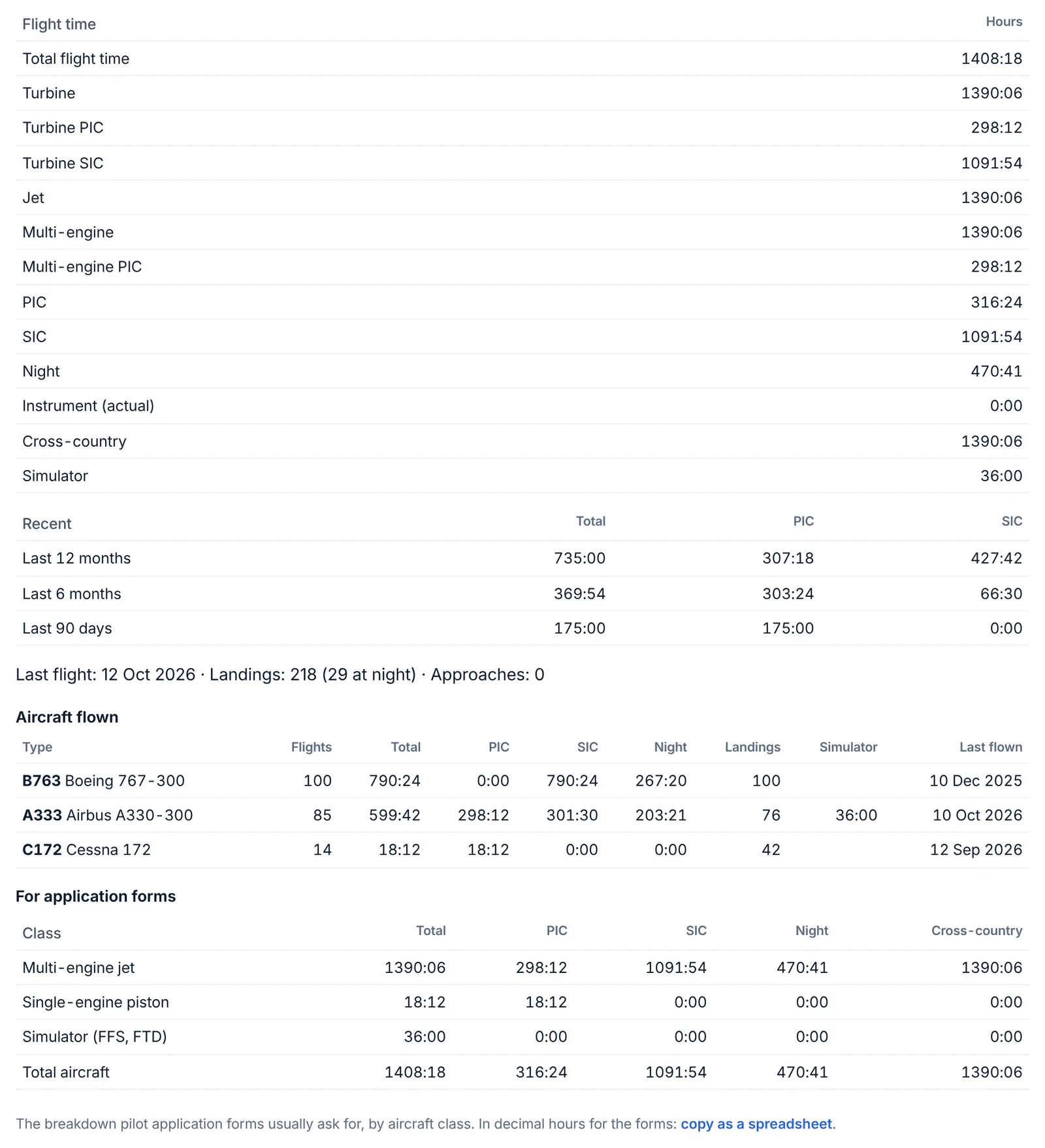
You don't need a group for this. Open Reports → Résumé. It lists every type you've flown with flights, total, PIC, SIC, night, landings, simulator and the date last flown, then a table For application forms that splits your time by class (multi-engine jet, multi-engine turboprop, single-engine piston and so on) into total, PIC, SIC, night, instrument and the rest. The link copy as a spreadsheet puts that table on your clipboard in decimal hours to one decimal place, ready to paste.
For one type in a period, build a group: Aircraft type is B763, and add date rules if the form asks for a window.
The Résumé tab is long. When it doesn't fit your screen, its sections become a row of chips at the top of the tab and only one shows at a time: tap the chip for Aircraft flown or For application forms to get to those tables. The picture shows every section at once.
Turbine PIC and multi-engine time
Turbine, Turbine PIC and Multi-engine are rows in every total: in Totals, in the Résumé and in each group. They come from each aircraft type's record: a type whose engine is Jet or Turboprop counts as turbine, and one whose class is multi-engine land or sea counts as multi-engine. So turbine PIC in the last 12 months is simply the Last 365 days group (or Totals with Last 12 months), read on its Turbine PIC row.
If a type shows no turbine time when it should, open Crew & aircraft (on a phone: More → Logbook lists) → Types and check its engine and class.
A rule like "Engine is not Piston" also lets through flights whose type has no engine set, and "Engine is" takes one value, so Jet and Turboprop together need Match any rule, which can't be combined with a second condition. For turbine time, read the Turbine and Turbine PIC rows of a group or a period instead.
The last 12 months on one fleet
Two rules, Match all rules:
- Aircraft type is B763 (tick it; tick B764 too if your fleet is both)
- In the last … days 365
Name it "767 last 12 months". Because "In the last … days" counts back from today, this group moves forward on its own every day.
Night landings in the last 90 days
- In the last … days 90
- Night landings more than 0
The group's totals show Landings day / night (full stop), and its flights are the ones with a night landing. For whether you're current, use Reports → Currency: it applies the rule for your license (for the FAA, 14 CFR 61.57(b): three takeoffs and three full-stop landings between one hour after sunset and one hour before sunrise, in the preceding 90 days, in the same category, class and type). A group counts what you logged; it doesn't judge currency.
Time with one airline
- Airline is ZZ
The airline comes from the flight number. Legs logged without a flight number have no airline, so add a second group or rule if you flew some legs without one (for example Tail starts with N8, if all of that airline's tails share a prefix).
Other useful ones
- A route or an airport you're checked into: Airport (either end) is KBOS, or From is KJFK and To is EGLL.
- Flights with one captain: Crew member contains RIVERA.
- Checkride and training flights: Instructor contains a name, or Remarks contains "IOE".
- Long-haul only: Total time more than 6.
- A year for your taxes or a contract: Date on or after 2025-01-01 and Date on or before 2025-12-31.
Show, print and use a group
When a group is open you have three buttons:
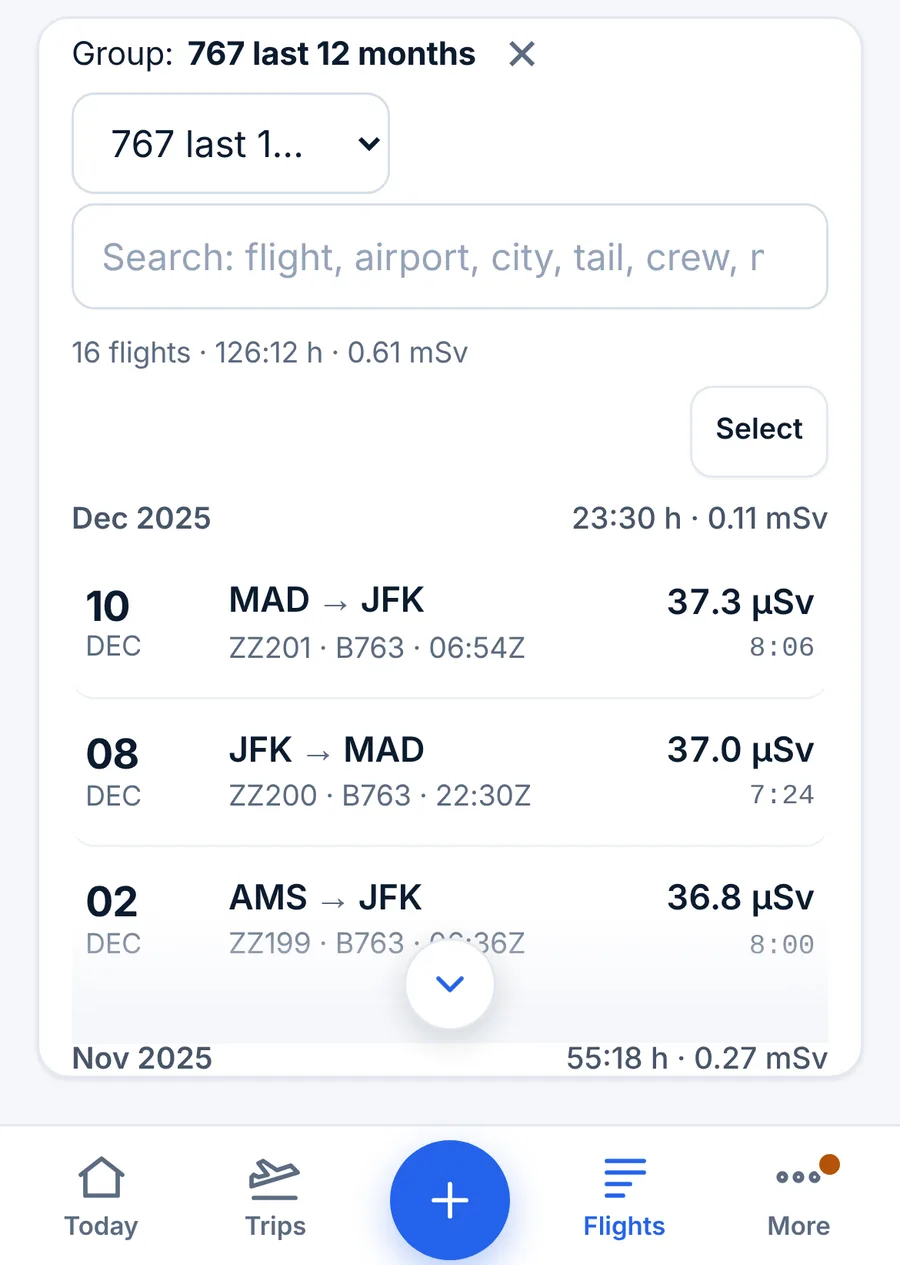
- Show these N flights closes Reports and filters your flight list to the group (on a phone, open the Flights tab to see it). A line above the list reads Group: name, with the number of flights, their hours and their dose; tap its × to see all flights again.
- Print or PDF opens a printable page with the group's name, its rules in words, the date, its totals and its time by aircraft type. Print it, or choose "Save as PDF" in the print dialog.
- Edit (saved groups) or Save as a group (suggestions).
The group picker in the flight list
Above the search box of the flight list is a menu that reads All flights. It lists Your groups and the groups From your logbook, with their flight counts. Pick one and the list shows only those flights, with their count, hours and dose under the search box, and a Group: name line with a × at the top. Choose All flights to go back.
You can still type in the search box while a group is picked: the list then shows flights in the group that also match the search. The search box and the picker appear once your logbook has eight flights or more.
A group in the flight list is a quick way to fix many flights at once: pick the group, tap Select, then Select all shown. See Editing, bulk changes, undo and history.
Every report and total in the app
Reports opens on the tab you used last. The tabs:
| Tab | What it gives you |
|---|---|
| Overview | Your total time for all entries, the last 7, 28 and 90 days, 6 and 12 months and this year, then your smart groups. Tap any line for its time by kind as bars, its time by type, and Show these flights. The phone's Totals view is the same screen |
| Totals | Any period (All time, Last 12 months, Last 6 months, Last 90 days, Last 28 days, This year, Last year or Choose dates…): a chart of flight time by month (PIC, SIC and other, with the average), every total, cards by aircraft type and a table by year |
| Experience | Your logbook added up one way at a time: by aircraft type, aircraft, airport, city, country, route, month or year, or your overnights by city; print it or Download (CSV) |
| Currency | Your recent experience and expirations for your license's authority |
| Certificates | Licenses, ratings, medicals and endorsements, with expiry dates; endorsements can be signed by an instructor |
| Duty & rest | Duty and rest against FAR 117, EASA ORO.FTL or the rules you choose; pay and per diem |
| Smart groups | The groups described above |
| Logbook pages | Your logbook printed in an authority's page layout |
| Logbook check | What an examiner or an auditor would query: missing times, totals that disagree with out and in, parts larger than the total, overlaps and flights logged twice |
| Résumé | Totals for airline applications, by type and by class, with recent time |
| Progress | Hours toward an FAA ATP, R-ATP, instrument or commercial, an EASA ATPL(A), or minimums you type in |
| FAA 8710 | The numbers for section III of the FAA pilot certificate application (IACRA) |
| Status | Airline and hotel loyalty programs, from your flights |
| Stats | A map of where you've flown, most flown routes, airports, types and airlines; Share as a picture |
| Radiation | Your cosmic radiation record by month and year |
| Files | Exports and backups |
Passenger accounts see Overview, Totals, Experience, Smart groups, Status, Stats, Radiation and Files. FAA 8710 shows when your base is a US airport or your airline is a US airline. Logbook pages, 8710 and the exports are explained in Official logbook pages, 8710 and exports.
Long tabs (Currency, Duty & rest, Résumé, Logbook pages, Logbook check, FAA 8710 and others) split into sections when they don't fit the screen: a row of chips at the top of the tab, one section shown at a time. If you can't find something described here, look for its chip.
Elsewhere in the app: Today shows your flight time against your limits with your other numbers, and Crew & aircraft (More → Logbook lists on a phone) lists every crew member, aircraft, type, airport and trip with its hours and flights; tap one to see its flights.
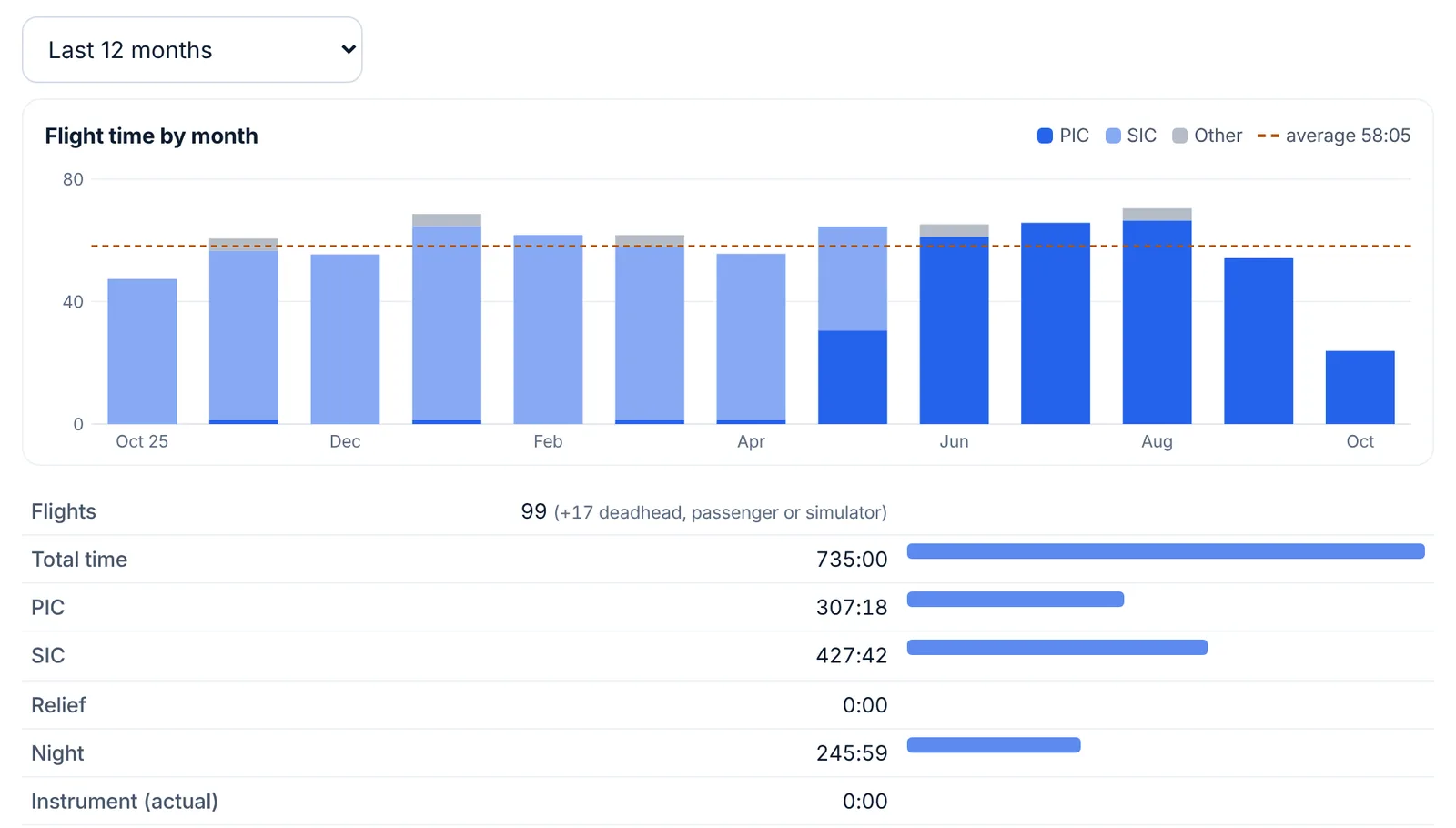
How LogAloft adds up your time
Knowing the rules behind the numbers saves surprises at an interview.
What counts as flight time. Only legs where you're Operating crew add to total time, PIC, SIC, night and the rest. Deadhead and passenger legs add to your dose and to Time aboard (all roles), never to flight time. Simulator sessions add to Simulator and to the training rows, not to total time.
Total time is what you logged as the flight's total. On a new flight with out and in times, it's filled from Out to In, or from Off to On if you set Settings → Total time on a new flight from to air time.
Night. When you log night time, that's what counts. When a flown leg has no night time, LogAloft works it out from the out and in times and the two airports, minute by minute along the great circle, counting the time the sun is more than 6° below the horizon (civil twilight, the 14 CFR 1.1 definition of night). Totals that include such flights say so, and Save the worked-out night time into those N flights in the Totals tab writes it into the flights.
Cross-country. As logged; if empty, a flight between two airports more than 50 nm apart counts whole. That matches the more-than-50-nm test 14 CFR 61.1 uses for private, commercial and instrument experience. Other definitions differ: in general (61.1(i)) a landing at any other airport counts, however close, and for the ATP (61.1(vi)) a flight that goes more than 50 nm from the departure point counts even with no landing elsewhere. LogAloft can't see either case from the two airports, so type the cross-country time on those flights yourself, and check the definition your form uses.
Turbine and multi-engine come from each type's engine and class, as explained above. Pilot monitoring is counted only when you've used the Pilot flying box.
Periods. Every period runs on the flight's date. "Last 12 months" is today and the 364 days before; "Last 90 days" is today and the 89 before. Flights dated after today aren't counted anywhere in Reports.
Decimal or h:mm, and rounding
LogAloft keeps every time exactly: 1:20 is stored as 1 and a third hours, not 1.3. Totals are added from the exact values and rounded once, when they're shown. Settings → Show hours as chooses the display:
- h:mm (7:25): rounded to the nearest minute;
- Decimal (7.4): rounded to the nearest tenth;
- Decimal (7.42): rounded to the nearest hundredth.
Changing it changes only how times are shown, never what's stored. That has one consequence worth knowing if you used to log by hand in tenths:
| Three legs of 1:20 each | Each leg shows | Total |
|---|---|---|
| Paper logbook in tenths | 1.3 + 1.3 + 1.3 | 3.9 |
| LogAloft, Decimal (7.4) | 1.3 each | 4.0 (1:20 × 3 = 4:00 exactly) |
LogAloft's total is the true one; the paper total lost a few minutes to rounding on every line. Over a career that can add up to hours, which is why your LogAloft total may sit slightly above the sum of an old paper logbook's tenths. The same goes for the Résumé's spreadsheet copy: each class is rounded to a tenth on its own, so the rows can differ from the total row by a tenth.
The CSV and LogTen exports write times as you've chosen to show them (h:mm or decimal). Where a flight's cross-country field is empty, they write the cross-country the reports count (the whole total for a leg over 50 nm), so the file adds up to the same totals; importing it back doesn't count as a change. The ForeFlight file always uses decimal hours to two places, as that format requires.
Totals are only as good as what's logged. Before you put a number on an application or a certificate form, run Reports → Logbook check and compare with your company's records. Your company's procedures and your authority's rules decide what may be logged as PIC, SIC or cross-country; LogAloft adds up what you entered.
Common questions
Why doesn't my group include the flight I just added for tomorrow?
Groups and reports count flights dated today or earlier. Once the flight's date arrives, it's in.
I ticked a crew member and got almost nothing. Why?
The Crew member field holds the whole crew of a flight as one line ("PIC: J. Rivera · SIC: …"), so ticking a value matches only flights with exactly that crew. Use contains and type the last name instead.
My Turbine PIC total is zero, but I fly a jet as captain.
The type's record has no engine set, or your PIC time is empty on those flights. Check the type in Crew & aircraft → Types, and that the flights have PIC time. A seat set with the bulk Change… doesn't fill PIC or SIC time; opening a flight with empty PIC and SIC and saving it does, from its seat.
Why does the group's total differ from my old logbook?
Usually rounding (see the table above), night or cross-country worked out where you left it empty, or deadhead legs your old logbook counted as flight time. Open the group's flights and compare a few.
Can I share a group with another pilot?
Not as a group. Print it with Print or PDF and send the PDF.
Do groups slow the app down?
No. They're worked out on your device in a moment, even for logbooks with thousands of flights.
Sources
- 14 CFR 61.51, Pilot logbooks (eCFR)
- 14 CFR 61.1, definitions (cross-country time) (eCFR)
- 14 CFR 1.1, definitions (night, flight time) (eCFR)
- 14 CFR 61.57, Recent flight experience: pilot in command (eCFR)