Help › Getting started
Your first ten minutes
Create your account, put LogAloft on your phone, fill in your profile, bring in your flights and find your way around the logbook, Trips, Reports and your dose.
In ten minutes you can have your history in LogAloft, your next trips on the calendar and your hours, limits and cosmic radiation dose counted. This guide walks you through it in order: the account, the app on your phone, the few settings that change your numbers, the first import, and a tour of the screens you'll use every day. It's written for airline pilots first, but everything here works the same for corporate and general aviation pilots, students, instructors and flight attendants.
Create your account and sign in
LogAloft doesn't use a password to start. You sign in with your email address, and a code we send you. The first time, that code creates your account.
- Open logaloft.com/new/ (the logbook). On a first visit you see what the logbook does, with Create your free logbook and Sign in. Either one opens the same box: Sign in or create your account.
- Type your email and tap Email me a code.
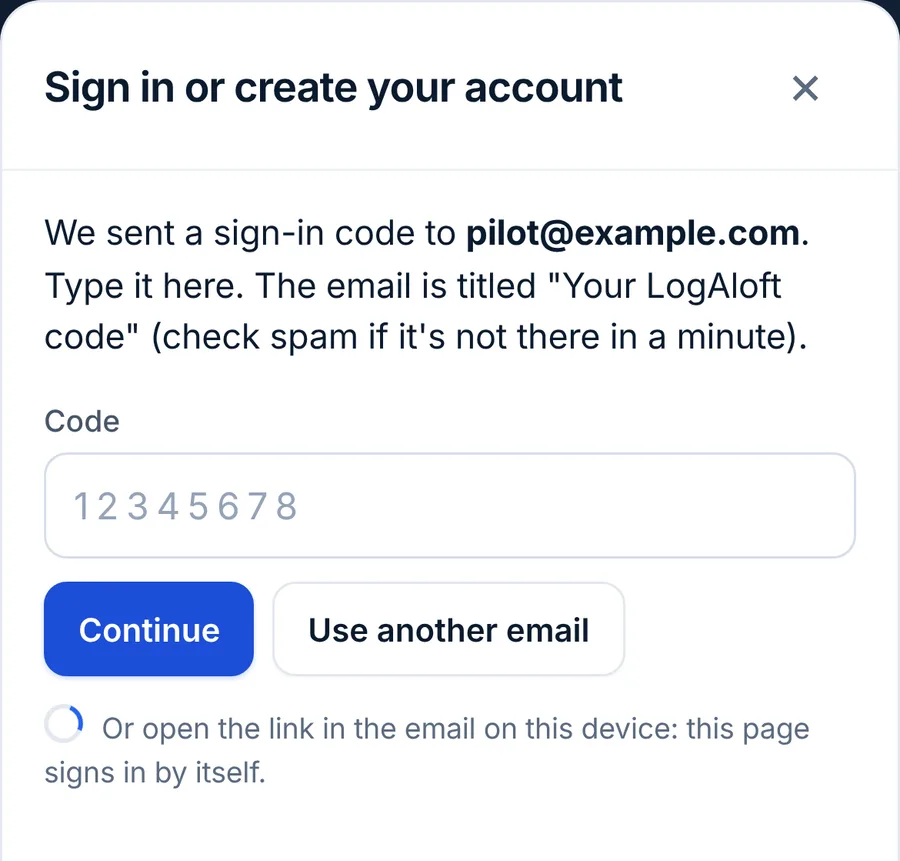
- Open the email titled "Your LogAloft code". Type the code in the Code box and tap Continue. If you open the link in that email on the same device instead, the page signs in by itself.
- The first time, LogAloft asks About you. Fill it in now (see the next section) or tap Later.
A few things that help:
- A password is optional. Once you're in, open Your account and set one under Password (at least 8 characters). After that, Use a password instead on the sign-in box lets you skip the email. If you forget it, sign in with a code.
- The device remembers your email, so next time you only tap Email me a code.
- Flights already on the device are added to your account when you sign in. You can try the logbook first with Try it on this device first and sign in later without losing anything.
- Signing in needs a connection. Offline, LogAloft waits until you're back online instead of asking for a code. A hotel or in-flight Wi-Fi login page doesn't end your sign-in.
You can use the logbook without an account. The flights then stay in that browser on that device only: no sync, no backups, no email inbox and no paper logbook reading. Sign in as soon as you have flights you care about.
Put LogAloft on your phone
LogAloft is a web app. You install it from the browser, it opens full screen from its own icon, and it keeps working without a connection for the flights already on the phone. There is no app store download.
| Device | How to install |
|---|---|
| iPhone or iPad | Open logaloft.com in Safari. Tap the Share button, then Add to Home Screen, then Add. |
| Android | Open logaloft.com in Chrome. Tap ⋮, then Install app (or Add to Home screen). |
| Computer | Use it in any browser. In Chrome or Edge, the install icon in the address bar adds it as an app. |
In the logbook on a phone, More → Install the app shows the same steps. It disappears once you're running the installed app.
On iPhone, notifications (gate and delay alerts) work only from the installed app, on iOS 16.4 or later. If you plan to use alerts, install first, then turn them on.
Installed on Android, LogAloft also appears in the share menu. That's useful later for sending it a boarding pass, a roster PDF or a booking email straight from another app (see Bring in your flights, every way).
Fill in your profile
A few answers change what LogAloft shows and how it counts. Everything is optional and you can change it at any time.
About you
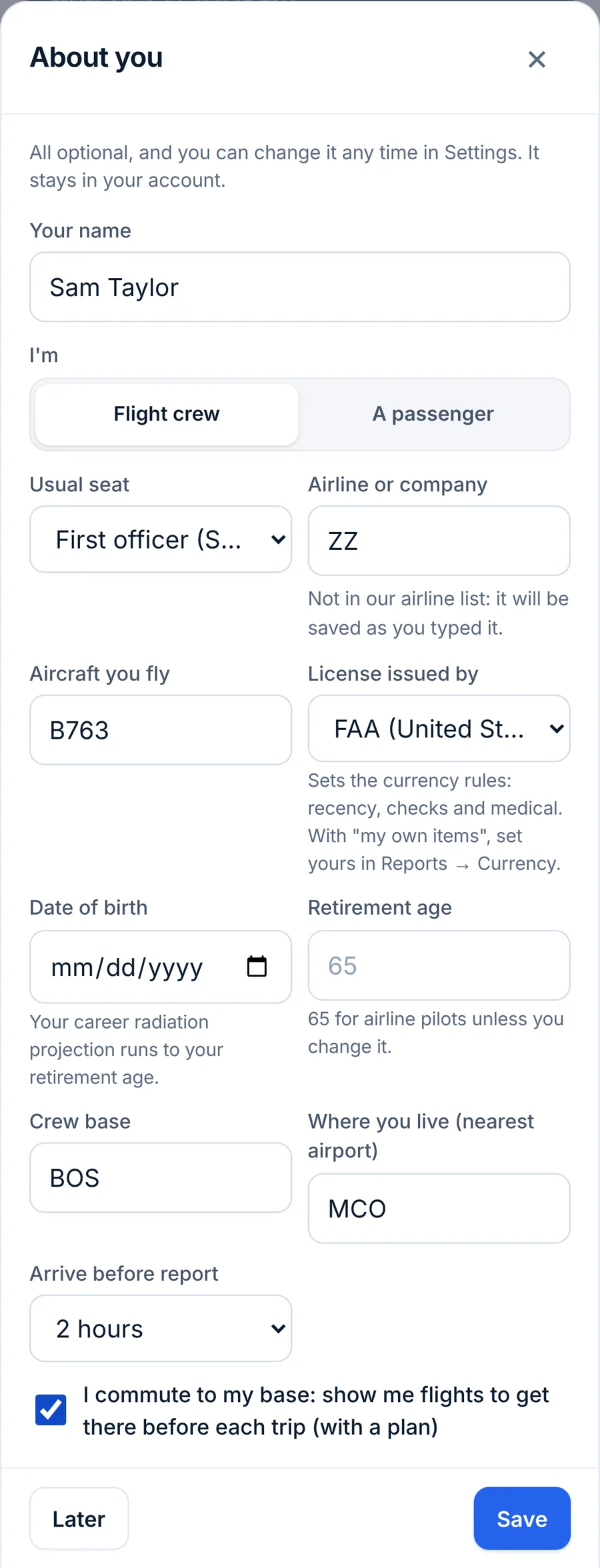
About you opens after your first sign-in. Later, find it in Your account → Pilot profile → Edit profile.
| Field | What it changes |
|---|---|
| Your name | How it appears on printed logbook pages and reports. It also lets LogAloft recognize you in crew lists. |
| I'm: Flight crew or A passenger | Crew get logbook times, duty limits and currency. Passengers get their trips, time in the air and dose. |
| Usual seat | The seat given to flights from a roster or a booking, and so whether their time goes to PIC or SIC. |
| Airline or company | Turns bare flight numbers on a roster into full ones (412 becomes ZZ412). |
| Aircraft you fly | Part of your pilot profile. Each flight still keeps its own tail and type. |
| License issued by | Which currency rules apply: FAA, EASA, UK CAA, Colombia's Aerocivil, the ICAO standard, or your own items. |
| Date of birth and Retirement age | Your medical dates and the length of your career radiation projection (65 unless you change it). |
| Crew base and Where you live (nearest airport) | Where your trips start, and the commute between the two. |
| Arrive before report and I commute to my base | How early you want to be at base, and whether to show commuting flights before each trip Pro. |
Settings
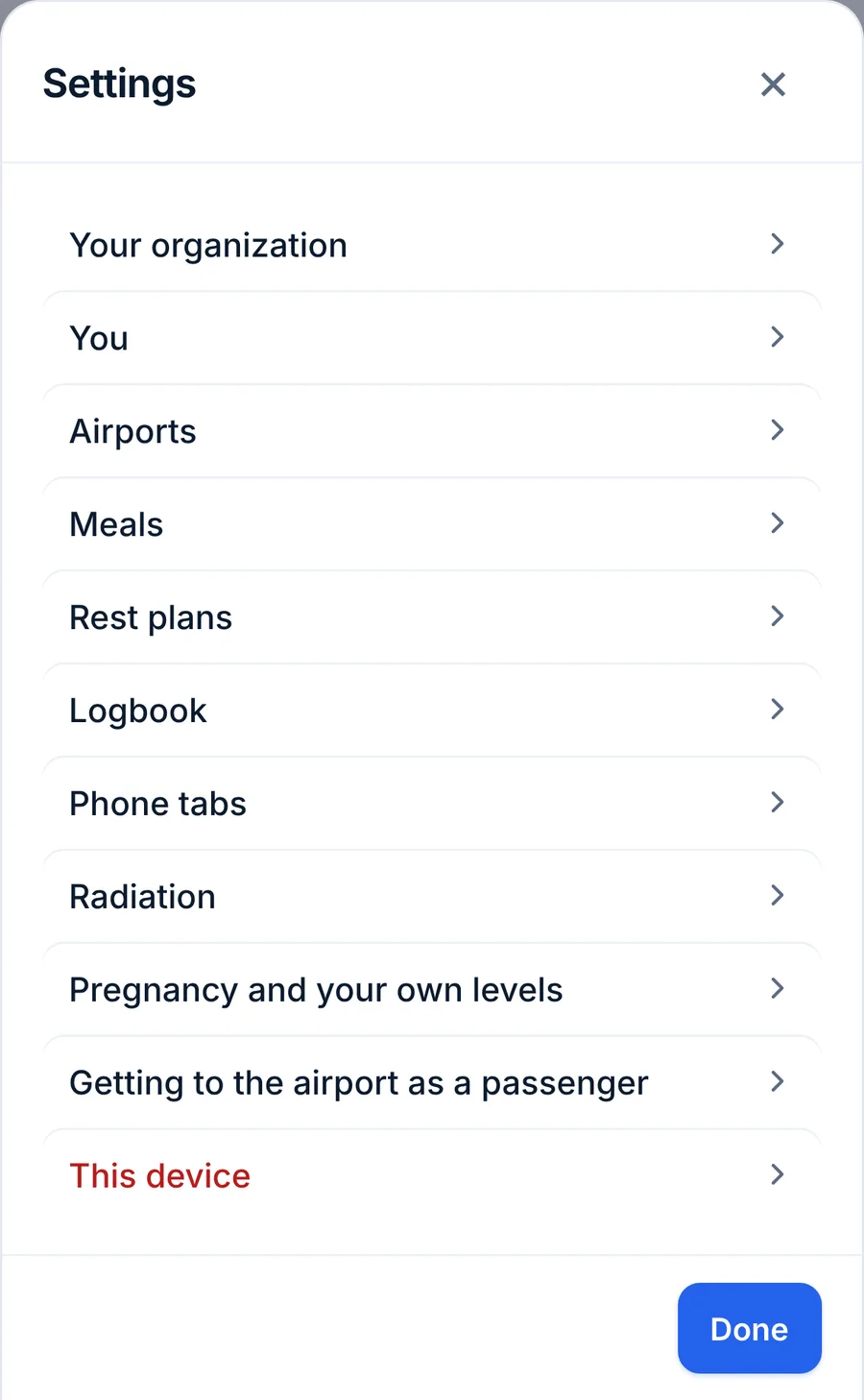
Open Settings from the logbook's toolbar on a computer, or More → Settings on a phone. On a phone, Settings is a list of sections (You, Airports, Meals, Rest plans, Logbook, Phone tabs, Radiation and more); tap one to open its own screen. On a computer the sections are on one page. Most of it can wait. These are the ones that change your numbers:
- In You:
- Language: English (US), Español, Français or Português (Brasil).
- Imported flights logged as: the seat (PIC, SIC, relief pilot or flight attendant) given to flights from rosters and bookings. Logbook files keep their own PIC and SIC.
- I also fly general aviation or train: opens the training fields (dual received, solo, instructor, flight review) on new flights and adds per-class currency.
- In Airports: Crew base and Home airport, the same as in About you.
- In Logbook:
- Show hours as: h:mm (7:25) or decimal (7.4 or 7.42). Only the display changes; what's stored stays exact.
- Flight times on the form in: UTC or local time at each airport.
- Total time on a new flight from: Out to In (block time) or Off to On (air time). Most airline pilots log block time; see Recording a flight for why.
Bring in your flights
You don't need to type your history. Tap Import (on a phone, More → Import). LogAloft works out what you gave it from the content, shows every flight it found, and adds nothing until you tap Add flights. Flights already in your logbook are merged, not added twice.
A good first session:
- Your old logbook. Export it from your current app (LogTen as a tab-delimited text file; ForeFlight, MyFlightbook, Logbook Pro, mccPILOTLOG or CrewLounge PILOTLOG as CSV) or save your spreadsheet as CSV or Excel. Choose the file in the File tab. Check the preview and add.
- Your roster. In Calendar link, paste the subscribe link of your airline's crew calendar and tap Read calendar. Or import the roster PDF or .ics file in the File tab. The flights to come show in Trips and Coming up.
- Paper years, if you have them. Signed in, the Paper logbook tab reads photos or a PDF of the pages. Do this one when you have time to check every page.
Every source, with tips and a troubleshooting table, is in Bring in your flights, every way.
Signed in, the Import screen also shows your own forwarding address. Forward roster files, logbook files and booking emails to it from your sign-in email, and they go into your logbook without opening the app.
A tour of the logbook
On a phone, the logbook has tabs at the bottom: Today, Trips, + (add a flight), Flights and More. You can swap the second and fourth tab in Settings → Phone tabs. On a computer, the same views are tabs under the title (Today, Trips, Flights, Totals), with Add flight, Import, Reports, Crew & aircraft and Settings in the toolbar.
Today
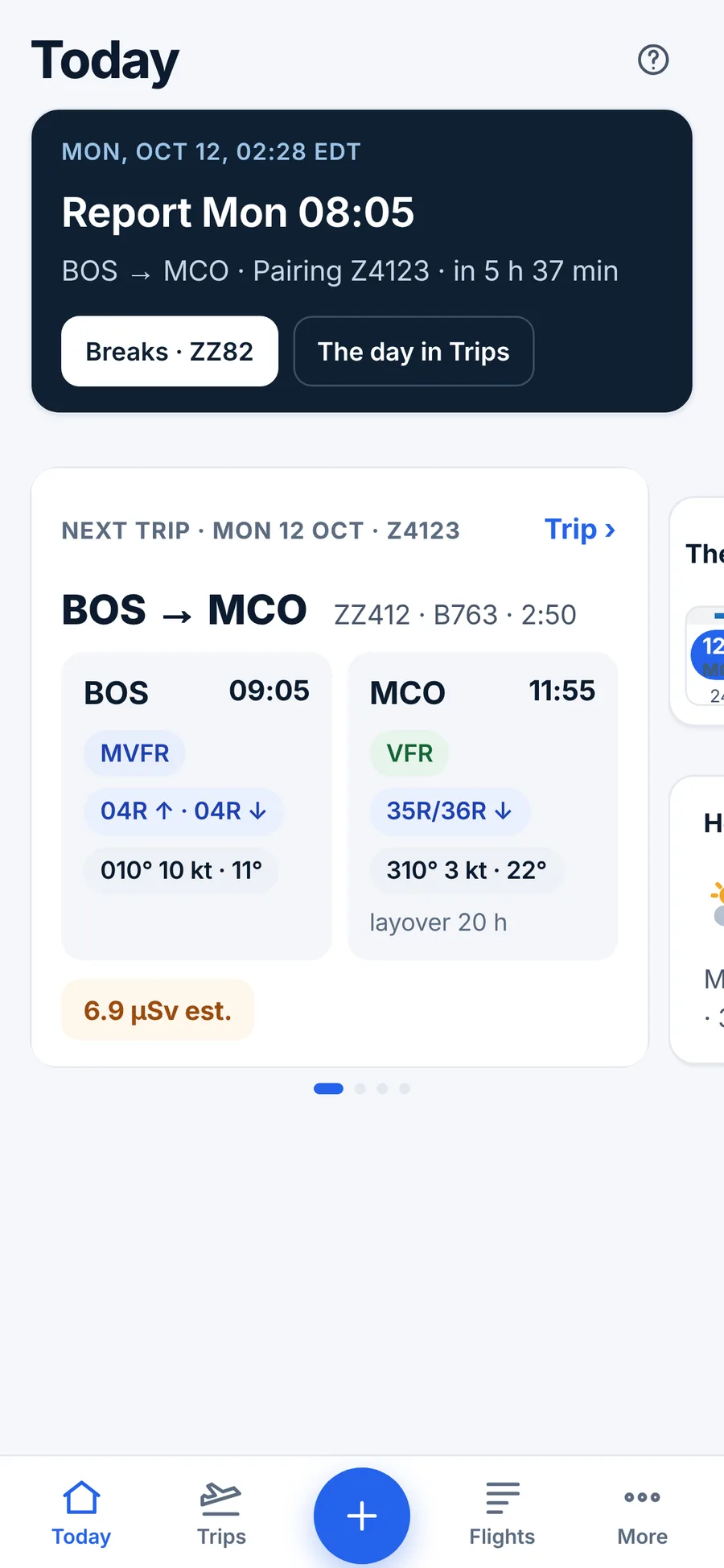
The dashboard. At the top, a dark banner gives your next report time, the route and pairing, and how long until it, with a button to open The day in Trips. On a phone, the rest of Today is one screen with no scrolling: a row of cards you swipe sideways, with dots under them showing which card you're on.
- The next trip. The first leg with its times, the current weather category (VFR, MVFR and so on) from the latest METAR, the runways in use and the wind at each end, the layover, and the flight's estimated dose. Trip › opens the whole trip.
- The week and home. This week's days with your duties (Trips › opens the calendar) and today's weather where you live.
- Your numbers. Small tiles: your cosmic radiation dose for the last 12 months in mSv, your hours against the 28-day limit, and how many currency items are current. Tap one for the detail.
- Trip details. Tap it for the trip's timeline, layover warnings and briefing.
On a computer, the same cards sit side by side on one screen: the next trip, the week and home in the middle, and your numbers in a column on the right (the dose ring for the last 12 months, a bar for each flight-time limit, and a dot for each currency item). Tapping the dose opens Totals; flight time and currency open Reports → Currency.
Trips
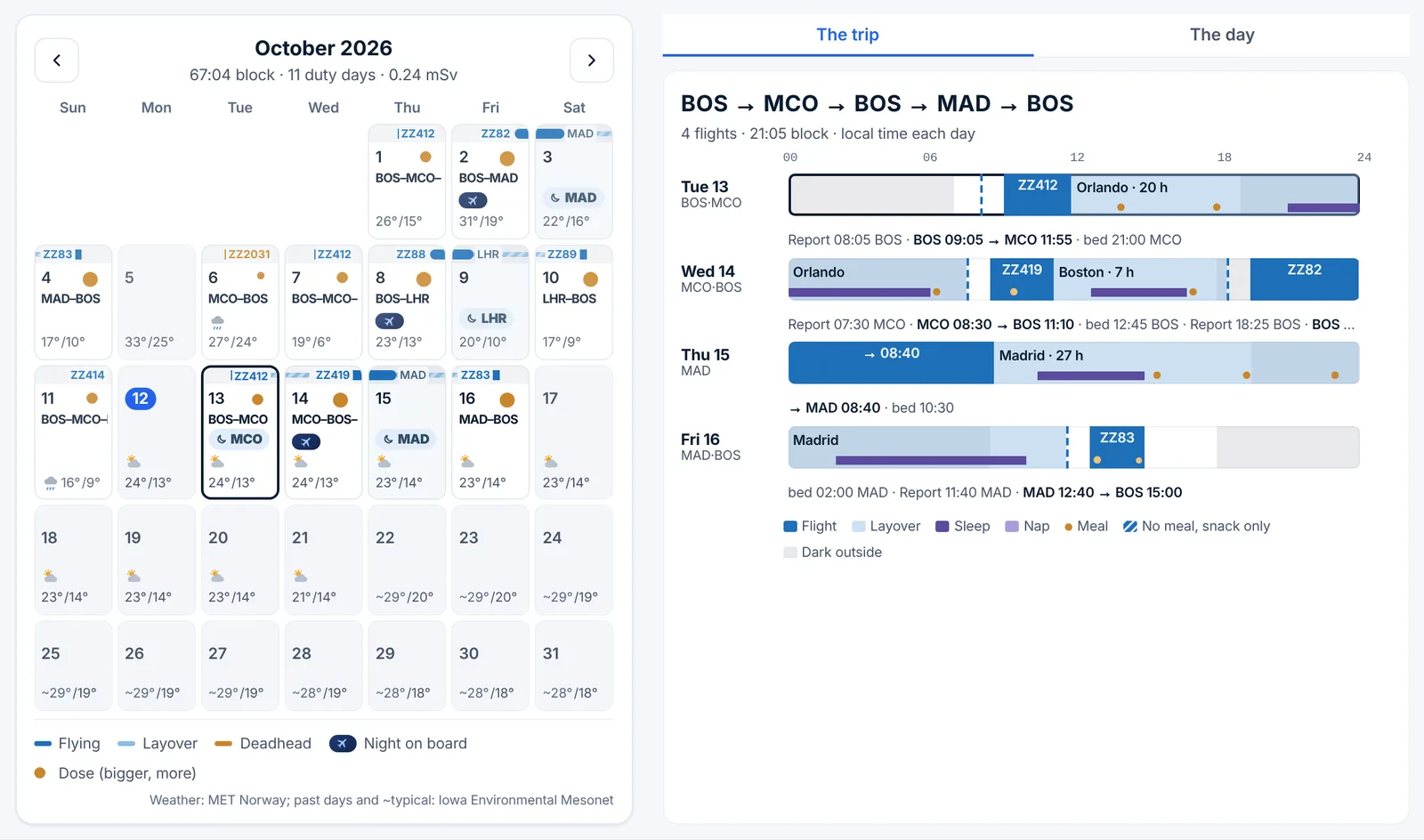
Trips is your schedule. A month calendar shows each day (flight numbers, route, layover city, nights on board, dose and the weather), with the month's block hours, duty days and dose at the top. Beside it are two tabs. The trip draws the whole pairing you picked, one row per day in local time: flights, layovers, when it's dark outside, and the sleep, naps and meals of the rest plan, with report, departure and bed times under each row. The day shows one duty day in detail: report time, each leg with its block time, connections and rest (short ones flagged), the layover with its hotel and weather, and the day's dose. Tap a day on the calendar to pick it, and tap a leg to open it.
Flights
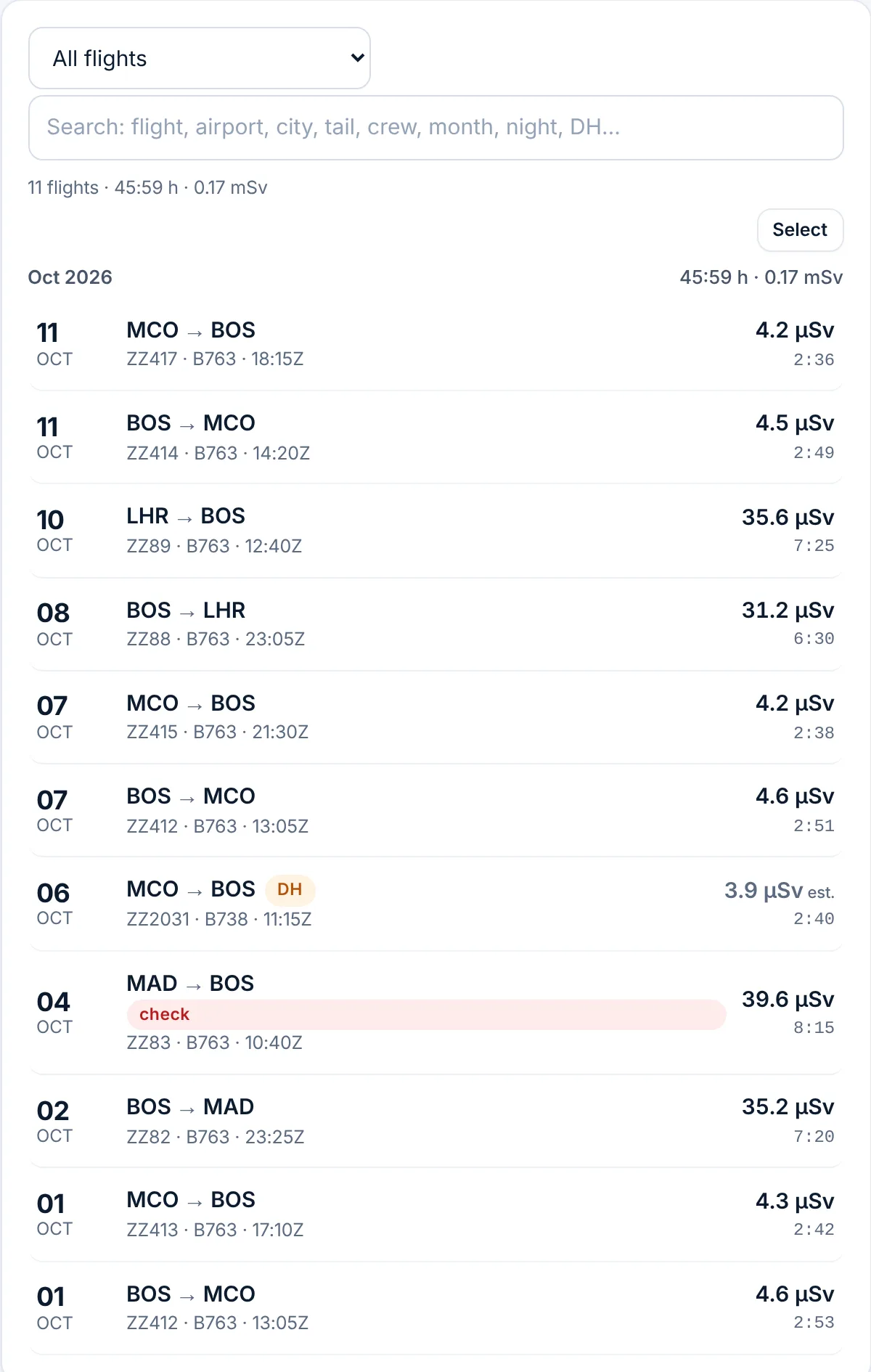
Every flight, newest first, folded by year and month so a long logbook stays short. Each row shows the date, route, flight number, type, out time, block time and the flight's dose. Chips mark what needs a look: planned, DH, check (an import found a difference), to sign or signed. The search box finds a flight, airport, city, tail, crew member, month, "night" or "DH". Select lets you change or delete several flights at once.
Totals and Reports
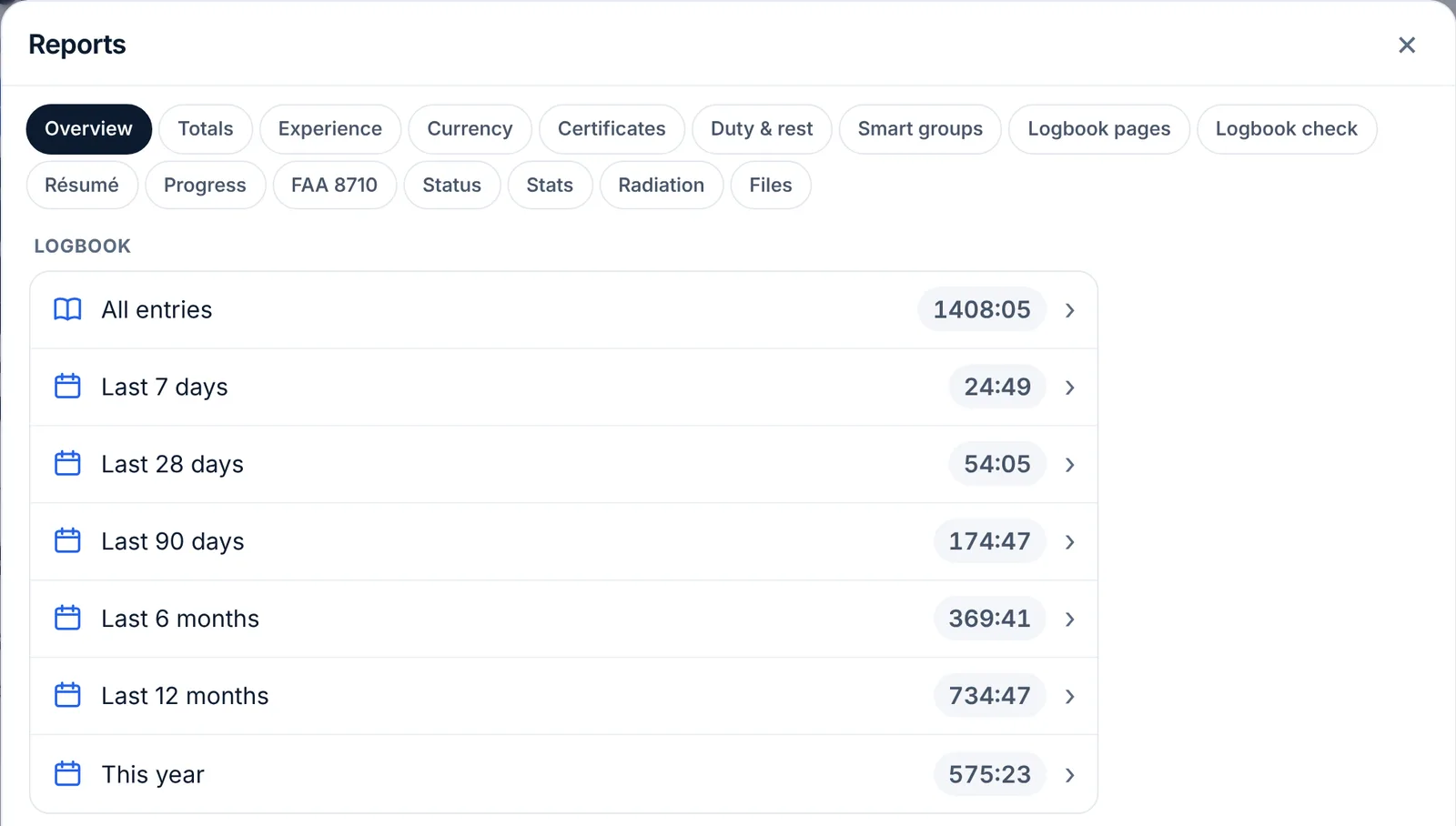
Totals adds up 7, 28 and 90 days, 6 and 12 months and this year, plus your smart groups, with the flights behind each number. Reports holds everything else, one tab each: Overview, Totals, Experience, Currency, Certificates, Duty & rest (FAR 117, EASA and other authorities), Smart groups, Logbook pages to print, Logbook check, Résumé, Progress, FAA 8710, Status (your progress in airline and hotel loyalty programs), Stats, Radiation and Files. Every report prints or saves as a PDF. Files exports your logbook (CSV, a LogTen file, a ForeFlight file, a calendar) and, signed in, lists the backups kept on our server.
Your dose
Every flight gets its cosmic radiation dose without you asking, worked out with the FAA's CARI-7A model. Until a flight has flown, or when it has no recorded track, the dose is an estimate from the route it usually flies and usual cruise levels. Once the flown track is in, it's replaced by the dose for the path and altitudes actually flown. Free accounts get the flown track for every flight between US airports and two other flights a month; Pro gets every flight's. Your dose for the last 12 months is on a tile on Today, each flight's dose is on its row in Flights, and the full record is in Reports → Radiation. How it's computed is on the method page.
Free and Pro
| Free | Pro | |
|---|---|---|
| Logbook size | First 25 flights or 50 hours, whichever comes first | Unlimited |
| Imports, email forwarding, paper logbook reading | Yes (forwarding and paper reading need an account) | Yes |
| Crew-app screenshots and ACARS photos read | No | Yes |
| Dose for every flight | Yes, with the flown track for US flights and 2 others a month | Yes, with every flight's flown track |
| Reports, currency, duty and rest, rest plans | Yes | Yes |
| Sync across devices and daily backups | Yes, signed in | Yes |
| Gate and delay alerts, commuting options, Where's my plane? | No | Yes |
| Price | Free | By role: pilots, cabin crew, travelers |
Where Pro is sold, your first plan starts with 14 days free, so you can bring in your whole logbook first. You add a card at checkout; cancel before the 14 days end and you pay nothing. When the free logbook is full, it becomes read-only: you can still see, search, export and delete flights, but not add or change them. Nothing you logged is taken away. Upgrade, switch between monthly and yearly, or cancel in Your account → Plan and billing.
Offline, and the same logbook everywhere
Each device keeps a full copy of your logbook. That's why it opens fast in a hotel with weak Wi-Fi and works at cruise without a connection.
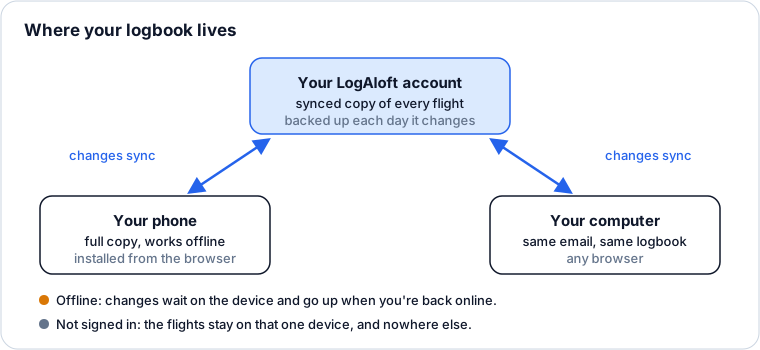
- Signed in, every change goes to your account and from there to your other devices. The note under the title says Saved to your account and synced across your devices, with when it last synced. To force it, open Your account and tap Sync now.
- Offline, the logbook shows Offline or No connection next to Help. Keep working: flights you add or change are kept on the device and sent when you're back online.
- Your account is backed up on our server every day something changes. Reports → Files lists those backups, with Back up now, and lets you add missing flights from one or replace your logbook with it.
- Signing out removes the copy on that device. Your flights stay in your account. If some changes haven't reached the account yet, LogAloft warns you first.
Without an account, the only copy is in that browser. Clearing the browser's site data, or a phone that deletes web app storage, deletes your flights. Sign in, or at least download Full backup (.json) from Reports → Files now and then.
Common questions
I didn't get the code.
Check spam for "Your LogAloft code". Codes expire: if a code is refused, tap Email me a code again and use the newest one. If your company mail filters external email, sign in with a personal address; you can change the email later in Your account.
My flights aren't on my other device.
Both devices must be signed in with the same email. Open Your account and tap Sync now on each, the one with the changes first.
Do I need to install it?
No. It works in any browser. Installing gives you a home-screen icon, full screen and, on iPhone, notifications.
Does LogAloft know my airline's schedule by itself?
No. It knows what you give it: a calendar link, a roster file or PDF, an email you forward. A calendar link is read when you tap Read calendar; it isn't refreshed in the background, so read it again after your schedule changes.
What happens when my trial ends?
If you didn't cancel, your plan starts and the card you added is charged. If you canceled, nothing is charged and you stay on the free plan; if your logbook has more than 25 flights or 50 hours, it becomes read-only until you choose Pro or delete flights. Nothing is deleted.
Is my logbook shared with my airline?
No. We never sell your data or share your flights with airlines or employers. Export it or delete it at any time; deleting your account in Your account → Delete removes every flight on all devices.
Sources
- LogAloft quick help: getting started, install, plans and billing
- How LogAloft works out doses: method and validation
- WebKit: Web Push for web apps on iOS and iPadOS 16.4